How to Add Verified Skills to Your LinkedIn Profile (Step-by-Step)
Adding verified skills to your LinkedIn profile is one of the fastest ways to stand out to recruiters and pass automated screening filters. A verified skill badge signals that you’ve passed a LinkedIn Skill Assessment, proving your proficiency beyond a self-reported list. In this guide, you’ll learn exactly how to add skills, take assessments, earn the verified badge, and align your LinkedIn skills with your resume for maximum impact.
Key Takeaways
- LinkedIn’s “verified skill” badge comes from passing a free Skill Assessment with a score in the top 30% of test takers.
- You can add up to 50 skills to your profile, but only the top 3 appear by default — pin your most relevant ones.
- Skill assessments are free, take 15-30 minutes, and you can retake them after a waiting period (typically 3 months) if you don’t pass.
- Aligning your LinkedIn skills with your resume prevents mismatches that can cost you interviews.
| What to Do | Why It Matters | Time |
|---|---|---|
| Add skills to your profile | Makes you discoverable in recruiter searches | 5 minutes |
| Take a skill assessment | Earns a verified badge that boosts credibility | 15-30 minutes per skill |
| Pin your top 3 skills | Shows recruiters your strongest abilities first | 2 minutes |
| Align skills with your resume | Prevents red flags during background checks | 10 minutes |
What Are Verified Skills on LinkedIn?
LinkedIn gives you two ways to signal your abilities: endorsements from connections and verified skills from Skill Assessments. Endorsements are nice, but they’re subjective — anyone can click a button. Verified skills, on the other hand, come from passing a timed, multiple-choice assessment that LinkedIn offers for many technical and business skills. When you pass, LinkedIn adds a small checkmark badge next to that skill on your profile.
Not every skill has an assessment available. LinkedIn offers assessments for popular skills like Excel, Python, Project Management, JavaScript, and dozens more. You’ll see a “Take assessment” button next to eligible skills in your Skills section. The assessment is free, and you can take it as many times as you need (with a waiting period between attempts).
Why Verified Skills Matter for Your Job Search
Recruiters use LinkedIn’s search filters to find candidates by specific skills. If you don’t list a skill, you won’t appear in those searches. Adding skills is the baseline; adding verified skills gives you an edge. A verified badge tells a recruiter that you didn’t just claim to know something — you proved it under timed conditions.
This matters most for technical roles where skill inflation is common. A hiring manager scanning 50 profiles for a data analyst role will notice the candidate with “SQL (Verified)” over one who just lists “SQL.” It’s a small signal, but in a competitive market, small signals add up. Verified skills also help if you’re pivoting careers or lack formal credentials in a tool — the badge acts as third-party validation.
For broader profile optimization, check out our guide on how to use LinkedIn’s Open to Work feature effectively.
How to Add Skills to Your LinkedIn Profile
Adding skills is straightforward, but many people skip it or do it haphazardly. Follow these steps:
- Go to your LinkedIn profile and click the “Add profile section” button near the top.
- Under “Core,” select “Skills.”
- Start typing a skill in the search box. LinkedIn will suggest options — choose the one that matches your actual expertise.
- Repeat to add more skills. You can add up to 50, but quality beats quantity. Aim for 10-20 relevant skills.
- Use the three-line icon to drag and reorder skills. The top 3 skills appear by default on your profile; the rest are hidden behind a “Show more” link.
- Decide whether to show endorsements. Leaving endorsements on is fine — they don’t hurt, and they add social proof.
- Click “Save.”
Pro tip: Add a mix of hard skills (e.g., Excel, Python, Salesforce) and soft skills (e.g., Communication, Leadership), but prioritize hard skills. Recruiters search for hard skills far more often.
How to Take a LinkedIn Skill Assessment
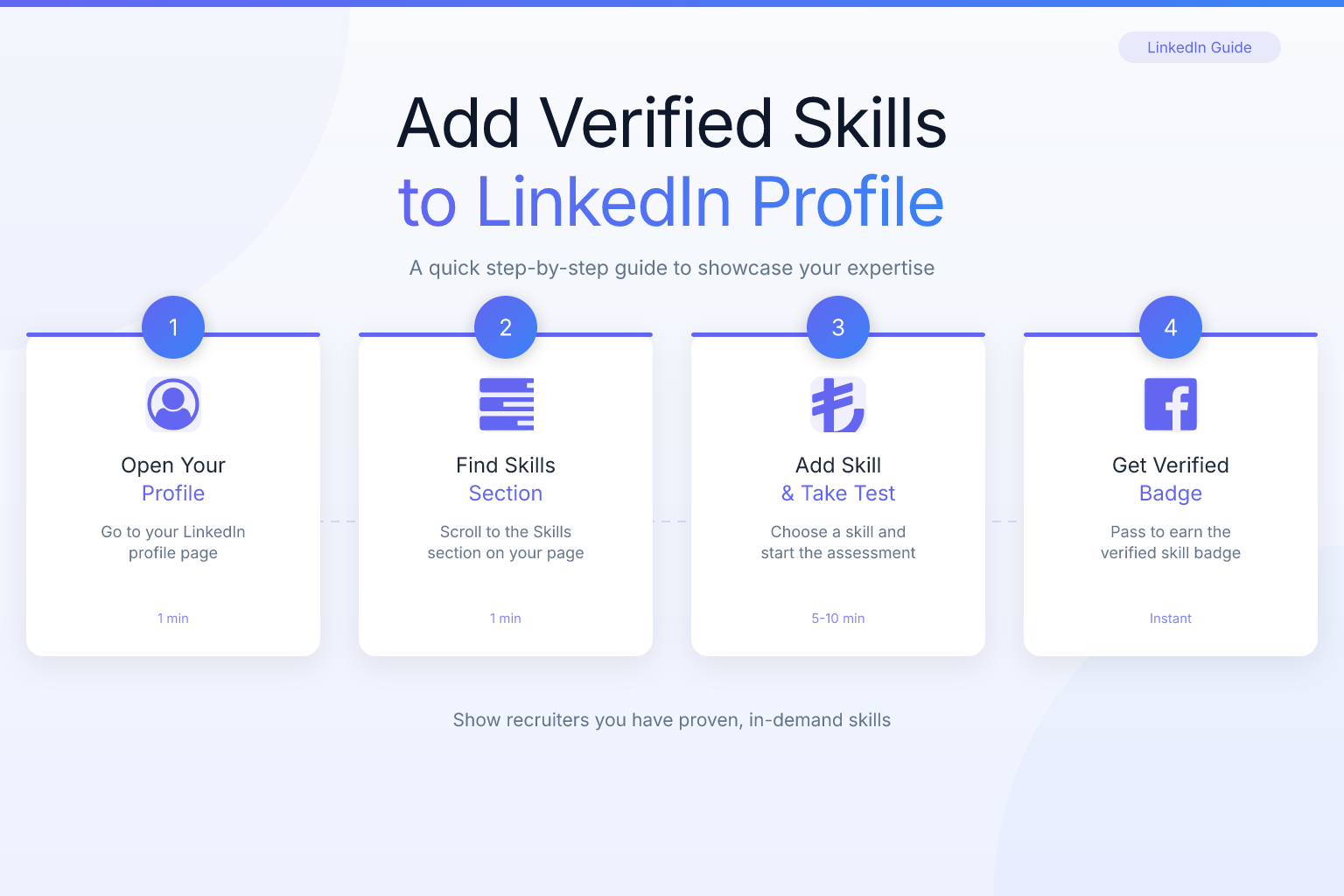
Once you’ve added skills, look for the “Take assessment” button next to any eligible skill. Here’s the process:
- Go to your Skills section and find a skill with a “Take assessment” button. Alternatively, visit LinkedIn’s Skill Assessments page directly.
- Click “Take assessment.” You’ll see a short description of the topics covered and the time limit (usually 15-30 minutes).
- Answer the multiple-choice questions. You need to score in the top 30% of test takers to pass — not a fixed percentage, but relative to others.
- If you pass, LinkedIn automatically adds the verified badge to that skill. No extra steps needed.
- If you fail, you can retake the assessment after a waiting period (typically 3 months). You can also hide the failed attempt from your profile if you prefer.
Assessments are not proctored, but LinkedIn asks you to complete them honestly. Using external help defeats the purpose and can backfire if a recruiter asks you to demonstrate the skill in an interview.
Tips for Passing LinkedIn Skill Assessments
Passing a skill assessment isn’t about being an expert — it’s about being prepared. Here’s how to maximize your chances:
- Choose skills you actually use. Don’t take an assessment for a skill you touched once in 2019. The questions are practical and scenario-based.
- Review the topic outline. Before starting, LinkedIn shows you the topics covered. Skim that list and brush up on any weak areas.
- Practice with free quizzes. Search for “[skill name] practice test” online. Many sites offer free multiple-choice questions similar to LinkedIn’s format.
- Manage your time. You have about 1-2 minutes per question. Don’t get stuck; answer and move on. There’s no penalty for wrong answers.
- Take assessments for 3-5 core skills. Don’t try to verify everything. Focus on the skills most relevant to your target role.
- If you fail, wait and retake. The badge is worth the effort, and you’ll know what to expect next time.
How to Manage and Showcase Verified Skills
Once you have verified badges, make them work for you:
- Pin your top 3 skills. These are the only ones visible without clicking “Show more.” Put your most relevant, verified skills first.
- Reorder strategically. If you’re applying for a project management role, put “Project Management (Verified)” above “Excel (Verified).”
- Remove outdated skills. If you no longer use a tool or it’s irrelevant to your current goals, delete it. A lean, focused skills list beats a bloated one.
- Mention verified skills in your headline or summary. For example: “Data Analyst | SQL (Verified), Python (Verified), Tableau.” This puts the badge front and center.
- Mirror the skills on your resume. Recruiters cross-check. If your LinkedIn says “Python (Verified)” but your resume doesn’t list Python, that’s a red flag.
For more on presenting skills on your resume, read our guide on how to show skills on a resume report.
Aligning Your LinkedIn Skills with Your Resume
Your LinkedIn profile and resume should tell the same story. If a recruiter finds you on LinkedIn, then opens your resume, any mismatch in skills creates doubt. Use the same terminology — don’t write “Project Management” on LinkedIn and “PM” on your resume. Keep the list consistent, even if the order differs.
Before you finalize your LinkedIn skills, run your resume through the ResumeMate score checker to see which skills are missing or underweighted. The checker gives you a section-by-section breakdown, so you can identify gaps and then add those same skills to LinkedIn. For help choosing which skills to include, see our post on skills for resumes: proven lists and how to pick yours.
Common Mistakes to Avoid
- Adding too many skills. LinkedIn allows 50, but listing 40 random skills dilutes your focus. Stick to 10-20 that directly support your target role.
- Skipping assessments for your top skills. If you list “Excel” as your #1 skill but don’t verify it, you’re leaving credibility on the table.
- Ignoring endorsements. Endorsements aren’t as strong as verified badges, but they still help. Ask a few colleagues to endorse your key skills.
- Using different skill names on LinkedIn vs. your resume. “Digital Marketing” vs. “Online Marketing” may seem minor, but it can confuse ATS and recruiters.
- Forgetting to update skills when you change roles. If you learn a new tool or move into a new field, update your LinkedIn skills within a week.
FAQ
Q: What is a verified skill on LinkedIn?
A: A verified skill is one where you’ve passed LinkedIn’s Skill Assessment for that skill. It shows a small checkmark badge next to the skill name, indicating you scored in the top 30% of test takers.
Q: How do I get a verified skill badge on LinkedIn?
A: Add the skill to your profile, then click “Take assessment” next to it. Pass the timed multiple-choice test with a score in the top 30%, and LinkedIn automatically adds the verified badge.
Q: How many skills can I add to LinkedIn?
A: You can add up to 50 skills. However, only the top 3 appear by default on your profile. Focus on 10-20 relevant skills and pin the most important ones.
Q: Can I retake a LinkedIn skill assessment if I fail?
A: Yes. LinkedIn allows you to retake a failed assessment after a waiting period, typically 3 months. You can also hide the failed attempt from your profile in the meantime.
Q: Do LinkedIn skill assessments cost money?
A: No. LinkedIn Skill Assessments are completely free. You can take as many as you want, subject to the retake waiting period for failed attempts.
Q: How do I reorder my skills on LinkedIn?
A: Go to your Skills section, hover over a skill, and use the three-line icon to drag it up or down. The top 3 skills are the ones shown by default on your profile.
Q: Are LinkedIn verified skills worth it?
A: Yes, especially for technical or competitive roles. The verified badge adds objective proof of your abilities and can help you stand out in recruiter searches and profile views.
Track Every Application While You Job Hunt
Stop losing track of where you’ve applied. The ResumeMate Job Tracker is a free Chrome extension that tracks every application, deadline, and follow-up in one place — right from your browser.