Best Interview Backgrounds for Teams & Zoom: Professional Options That Work (2026)
Choosing the best virtual background for job interview professional settings is one of the fastest ways to make a strong first impression on camera. A clean, distraction-free background tells the interviewer you’re organized, detail-oriented, and respectful of their time. A cluttered or unprofessional one can quietly undermine everything you say. This guide breaks down exactly which backgrounds work, which to avoid, and how to set them up on Zoom, Microsoft Teams, and Google Meet.
Key Takeaways
- The safest virtual background for a job interview is a subtle blur or a neutral solid color—both keep the focus on you without risking technical glitches.
- A real, tidy office or bookshelf background works well if it’s uncluttered, well-lit, and free of personal items that could distract or raise questions.
- Avoid custom images, busy patterns, and virtual backgrounds with logos, text, or moving elements—they can look unprofessional and may not render correctly.
- Test your background, lighting, and camera angle at least 30 minutes before the interview to catch any issues early.
- Pair your background with professional attire and good lighting; the background is only one part of your on-camera presence.
| What to Do | Why It Matters | Time |
|---|---|---|
| Choose a blur or neutral solid color background | Eliminates visual clutter and keeps attention on your answers | 5 minutes |
| Test your background on the actual platform you’ll use | Prevents last-minute technical glitches or awkward framing | 10 minutes |
| Declutter and stage a real background if you skip virtual options | A tidy, professional space signals organization and respect | 20 minutes |
| Check lighting and camera angle before the call | Poor lighting can make even the best background look bad | 10 minutes |
What Makes the Best Virtual Background for a Job Interview Professional?
The best virtual background for a job interview professional context is one that disappears. It should be so neutral and unobtrusive that the interviewer never consciously notices it. That means no bright colors, no busy patterns, no personal photos, and no text or logos. The background’s job is to frame you, not compete with you.
Most hiring managers and recruiters agree that a cluttered or distracting background is one of the most common—and most avoidable—mistakes in video interviews. It can make you look unprepared, disorganized, or even unprofessional, regardless of your qualifications. For a deeper dive into the full virtual interview experience, check out our guide on nailing your remote job interview.
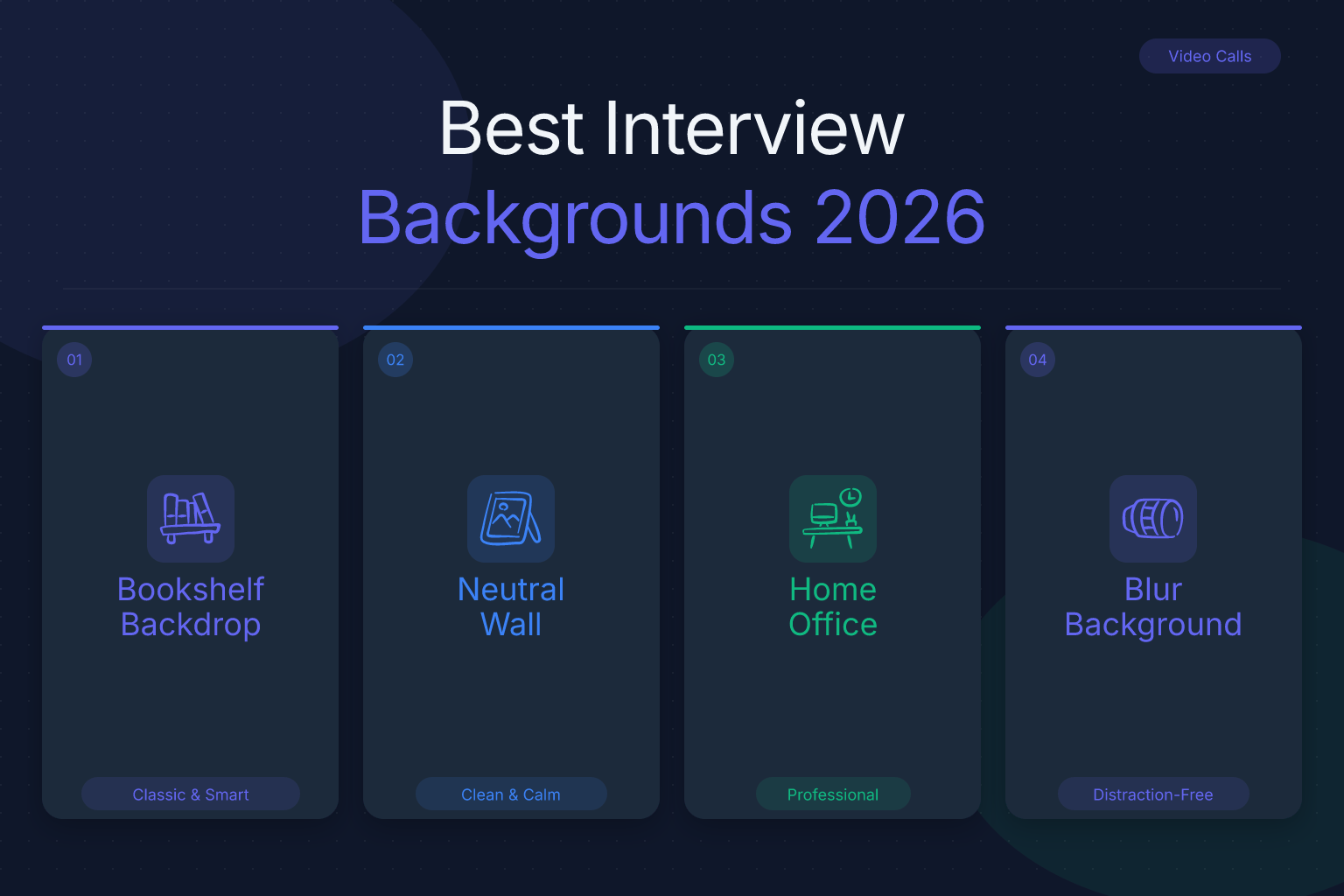
Three background types consistently perform well in professional interviews:
- Background blur – available on Zoom, Teams, and Meet, it softens everything behind you while keeping you in sharp focus.
- Neutral solid colors – a plain wall, a virtual solid color, or a physical backdrop in gray, beige, or soft blue.
- A real, tidy office or bookshelf – a genuine, uncluttered space that looks professional without being sterile.
Each has trade-offs, and the right choice depends on your environment, the platform, and the company culture.
The Safest Option: Blur Your Background
If you’re unsure what to use, background blur is the safest choice for almost every job interview. It works on all major platforms, requires no setup beyond a single click, and instantly removes visual clutter without looking artificial. The interviewer sees a soft, out-of-focus backdrop that keeps all attention on your face and expressions.
Blur is especially useful when:
- Your room is messy or contains personal items you’d rather not show.
- You’re interviewing from a bedroom, kitchen, or shared space.
- You don’t have time to stage a professional-looking background.
- You’re worried about a virtual background glitching or cutting off your head or shoulders.
One caveat: blur works best when there’s some distance between you and the wall behind you. If you sit directly against a wall, the blur effect may be minimal. In that case, move your chair a few feet forward or use a solid color background instead.
Solid Color Backgrounds: When and How to Use Them
A solid color background—either a real painted wall or a virtual solid color—is the second-safest option. It’s clean, professional, and completely distraction-free. The best colors are muted and neutral:
- Gray – universally professional, works with any skin tone and outfit.
- Beige or off-white – warm and approachable, but avoid pure white, which can cause glare.
- Soft blue or navy – calm and trustworthy, common in corporate settings.
- Muted green – works well if it’s a dark, desaturated green, not bright or neon.
Avoid bright red, orange, yellow, or any neon color. They can reflect onto your face, make you look washed out, or simply feel aggressive. Also avoid pure black—it can look like a void and make the video feel heavy.
If you use a virtual solid color background, test it carefully. Some platforms struggle to separate you from the background if you’re wearing a similar color. For example, a gray background with a gray shirt can cause your torso to disappear. Choose a background color that contrasts with your clothing.
Office or Bookshelf Backgrounds: The Classic Professional Look
A real, tidy office or bookshelf background can be an excellent choice if you have a space that’s genuinely clean and organized. It signals that you’re professional, established, and comfortable in a work environment. Many interviewers respond positively to a bookshelf with a few tasteful books, a plant, or a simple piece of art.
But this option only works if the space is truly uncluttered. A bookshelf crammed with random items, a desk covered in papers, or a wall with personal photos can backfire. The interviewer may start reading your book titles, noticing your family photos, or wondering about the pile of laundry in the corner.
If you go this route, follow these rules:
- Remove anything personal, controversial, or distracting (family photos, political items, alcohol, clutter).
- Keep only a few neutral items: a plant, a lamp, a couple of books with plain spines.
- Make sure the space is well-lit and the camera angle doesn’t cut off your head or show the ceiling.
- Do a test recording to see exactly what the interviewer will see.
Custom Virtual Backgrounds: Do They Work for Interviews?
Custom virtual backgrounds—images of a fake office, a city skyline, or a branded backdrop—are risky for job interviews. While they can look polished in theory, they often fail in practice:
- Rendering glitches: If you move, your hand or hair may disappear into the background.
- Uncanny valley: A fake office can look obviously fake, which undermines your credibility.
- Distraction: A busy cityscape or a logo-heavy background pulls attention away from you.
- Inappropriate tone: A beach or a cartoon background signals you’re not taking the interview seriously.
There is one exception: if the company you’re interviewing with has a branded virtual background and explicitly provides it, you can use it. But even then, test it first. If it renders poorly, fall back to blur or a solid color.
Common Virtual Background Mistakes to Avoid
Even well-intentioned candidates make mistakes that hurt their interview. Here are the most common ones:
- Using a cluttered real background – a messy room, an unmade bed, or a kitchen with dirty dishes in view.
- Choosing a busy or bright virtual background – patterns, neon colors, or images with text or logos.
- Sitting too close to the camera – this makes the background irrelevant but also distorts your face and makes you look unprofessional.
- Poor lighting – a dark room makes even the best background look gloomy; a bright window behind you turns you into a silhouette.
- Not testing the background beforehand – you discover at the last minute that the virtual background cuts off your head or that your real background is embarrassing.
- Wearing clothes that blend into the background – a gray shirt on a gray wall, or a green shirt on a green screen.
Avoid these, and you’re already ahead of most candidates. For more on how your overall appearance affects the interview, read our guide on what to wear to an interview.
How to Set Up Your Virtual Background on Zoom, Teams, and Google Meet
Setting up a virtual background or blur takes less than a minute on each platform. Here’s how:
Zoom
- Open Zoom and click the gear icon (Settings).
- Go to Background & Effects.
- Choose Blur or select a virtual background image.
- If you want a solid color, click the + icon and upload a plain color image, or use the built-in color options.
Microsoft Teams
- Before or during a meeting, click the More actions (three dots) menu.
- Select Apply background effects.
- Choose Blur or pick a background image.
- Click Apply.
Google Meet
- Before joining, click the Change background icon (a person with a sparkle) at the bottom right.
- Choose Blur or select a background.
- You can also upload a custom image.
Always test your background on the exact platform and device you’ll use for the interview. A background that works on your laptop may not work on your phone or tablet.
Lighting and Camera Angle: The Background’s Best Friends
Your background is only as good as the lighting and camera angle that frame it. Even a perfect blur or solid color looks bad if your face is in shadow or the camera is pointed up your nose.
Follow these rules:
- Light from the front: Place a lamp or window in front of you, not behind you. A window behind you creates a silhouette.
- Camera at eye level: Stack books or use a laptop stand so the camera is level with your eyes. Looking down at the camera is unflattering and unprofessional.
- Fill the frame: Your head and shoulders should occupy the upper third of the frame, with a little space above your head.
- Check the background edges: Make sure no clutter, cords, or personal items are visible at the edges of the frame.
For a complete pre-interview checklist, see our guide on tips to prepare for an interview.
FAQ
Q: What is the best virtual background for a job interview?
A: The best virtual background for a job interview is a subtle blur or a neutral solid color like gray, beige, or soft blue. These options keep the focus on you and avoid technical glitches or distractions.
Q: Should I use a virtual background or blur my background?
A: Blur is usually safer because it looks natural and doesn’t risk rendering glitches. Use a virtual background only if it’s a simple solid color or a company-provided branded background that you’ve tested beforehand.
Q: What color background is most professional for a video interview?
A: Muted, neutral colors work best: gray, beige, off-white, soft blue, or dark green. Avoid bright or neon colors, pure white, and pure black, which can cause glare or look harsh.
Q: Can I use a custom image as my virtual background?
A: It’s risky. Custom images often render poorly, look fake, or distract the interviewer. If you must use one, choose a simple, uncluttered image and test it thoroughly before the interview.
Q: What if my room is messy and I can’t clean it?
A: Use background blur or a solid color virtual background. Both hide clutter instantly and require no physical cleanup. Just make sure you have enough distance from the wall for blur to work effectively.
Q: How do I set up a virtual background on Zoom?
A: Open Zoom Settings, go to Background & Effects, and choose Blur or a virtual background image. You can also upload a solid color image by clicking the + icon.
Q: Does my virtual background affect how the interviewer perceives me?
A: Yes. A clean, professional background signals organization and respect. A cluttered or distracting background can make you look unprepared, even if your answers are strong.
Related articles:
Track Every Application While You Job Hunt
Stop losing track of where you’ve applied. The ResumeMate Job Tracker is a free Chrome extension that tracks every application, deadline, and follow-up in one place — right from your browser.