Best Resume Template 2026: How to Choose the Right Free Resume Builder Template
A resume builder template can turn hours of formatting into a few clicks — but only if you pick the right one. Whether you’re a recent graduate, a career changer, or a seasoned professional, the template you choose inside a resume builder determines how your experience gets organized, how an ATS reads it, and how a recruiter reacts in those first few seconds. This guide walks you through everything you need to know about resume builder templates: what they are, how to pick one that fits your industry, how to customize it without breaking the layout, and where to find free, ATS-safe options that actually work.
| What to Do | Why It Matters | Time |
|---|---|---|
| Choose a single-column template | Maximizes ATS parsing accuracy | 5 min |
| Match template style to your industry | Shows you understand professional norms | 10 min |
| Customize section headings and order | Puts your strongest qualifications first | 15 min |
| Export as a clean, text-based PDF | Prevents formatting glitches in ATS | 2 min |
| Test your resume with an ATS score checker | Catches hidden parsing errors before you apply | 5 min |
What Is a Resume Builder Template?
A resume builder template is a pre-designed layout inside a resume builder tool. It gives you the structure — section headings, font choices, spacing, and the overall visual flow — so you don’t have to start from a blank page. Unlike a static Word document where you manually adjust margins and tab stops, a builder template lets you fill in your details through guided fields. The tool then handles alignment, consistent formatting, and export automatically.
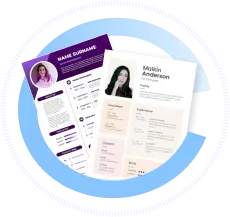
Most resume builders, including the free ResumeMate builder, offer a library of templates. You pick one that matches your professional style, enter your work history, skills, and education, and the builder produces a polished, print-ready PDF. Templates range from simple single-column designs that prioritize readability to more visual multi-column layouts that place skills or contact info in a sidebar. The core idea is the same: a template gives you a professional starting point so you can focus on content instead of design.
When you use a resume builder template, you’re not locked into a rigid format. You can typically reorder sections, add custom headings like “Projects” or “Volunteer Experience,” and adjust the emphasis to fit your career story. The template just ensures that whatever you change still looks clean and consistent.
Why Template Choice Matters for ATS and Recruiters
Your template isn’t just about looks — it directly affects whether your resume gets seen by a human. Over 98% of Fortune 500 companies use an applicant tracking system (ATS) to screen resumes, according to Jobscan. These systems parse your document, extract text, and sort it into categories like work experience, education, and skills. If your template’s layout confuses the parser, key information can get scrambled or dropped entirely.
Templates that rely on tables, text boxes, graphics, or multiple columns often cause parsing errors. For example, a two-column template with a left sidebar for skills might cause the ATS to read the sidebar content as a separate block, mixing it with your work history in unpredictable ways. When that happens, a recruiter searching for “project management” might never see that you listed it, because the ATS couldn’t map it correctly.
Recruiters also spend only a few seconds on an initial resume scan. A template with a clear visual hierarchy — bold section titles, consistent spacing, and a predictable flow from summary to experience to education — helps them find what they need fast. If they have to hunt for your job titles or dates, you risk losing their attention.
Choosing an ATS-friendly template is the single most impactful decision you can make before writing a single bullet point. For a deeper dive into formatting pitfalls, read our guide on ATS formatting mistakes that kill your resume. And if you already have a draft, run it through the ResumeMate score checker to see exactly how an ATS interprets your layout.
How to Pick the Right Template for Your Industry
Different industries have different expectations for resume design. A template that works for a graphic designer might look out of place for an accountant, and vice versa. The key is to match the template’s style to the professional norms of your target field while keeping it ATS-safe.
Corporate and traditional fields (finance, consulting, law, healthcare administration): Stick with a conservative single-column template. Clean lines, standard fonts like Arial or Calibri, and a straightforward order — contact info, professional summary, work experience, education, skills. These industries value clarity and professionalism over visual flair. A nurse, for instance, should use a template that puts licenses and certifications front and center; see our nurse resume examples for inspiration.
Technology and engineering: A single-column template still wins for ATS safety, but you can add a dedicated “Technical Skills” or “Projects” section near the top. The engineering resume guide shows how to structure these sections effectively. Avoid overly stylized templates — tech recruiters scan for keywords, not design.
Creative fields (graphic design, marketing, UX): You have more room to show personality, but don’t sacrifice ATS compatibility. A template with subtle color accents or a slightly more modern font can work, as long as it remains text-based and single-column. If you’re a graphic designer, you might pair a clean resume template with a separate portfolio link; our graphic designer resume examples show how to balance creativity and ATS safety.
Career changers: You need a template that lets you highlight transferable skills and relevant accomplishments over chronological work history. A combination resume format often works best. The career change resume format guide walks through how to structure a template for this scenario.
When in doubt, preview your resume in a plain-text view. If the content reads logically from top to bottom without any odd jumps, your template is likely ATS-friendly across industries.
Single-Column vs. Multi-Column Templates: Which Is Safer?
This is one of the most common questions about resume builder templates. The short answer: single-column templates are the safest choice for almost every job seeker.
Single-column layouts present your information in a linear, top-to-bottom flow. An ATS reads them like a normal document — section by section, line by line. There’s no risk of the parser misinterpreting side-by-side content or merging unrelated blocks. Recruiters also find single-column resumes easier to scan because their eyes move in a predictable pattern.
Multi-column templates, such as those with a narrow sidebar for skills or contact details, can cause problems with older ATS platforms. While modern systems like Workday, Greenhouse, and Lever often handle two-column layouts reasonably well, you can’t guarantee which ATS a given employer uses. A single-column template removes that uncertainty entirely.
That doesn’t mean multi-column templates are always a bad choice. If you’re applying to a small company that you know reviews resumes manually, or if you’re handing out a printed resume at a career fair, a well-designed two-column layout can look polished. But for online applications through job boards and corporate portals, single-column is the reliable default.
ResumeMate offers both single-column and multi-column templates. If you’re applying broadly, start with a single-column option. You can always switch templates later without retyping your content. To confirm your template parses correctly, upload your finished resume to the free ResumeMate score checker — it flags layout-related parsing issues instantly.
Customizing a Template Without Breaking the Layout
A common fear is that tweaking a resume builder template will mess up the formatting. In a well-built builder, customization is designed to be safe. You can rearrange sections, add or remove headings, and adjust content while the template adapts automatically.
Here’s how to customize effectively:
- Start with a template that’s 80% right. Pick one that already has the sections you need in roughly the right order. Don’t try to force a creative template into a corporate mold — it’s easier to start close to your target.
- Reorder sections to put your strengths first. If you’re a recent graduate, move “Education” above “Work Experience.” If you’re a senior professional, lead with a strong professional summary and your most recent role. Most builders let you drag and drop sections.
- Use standard section headings. ATS software looks for labels like “Work Experience,” “Education,” and “Skills.” Avoid creative alternatives like “Where I’ve Made an Impact” or “Things I’m Good At.” If you need a custom section, keep the label descriptive but conventional — “Volunteer Experience” or “Technical Projects” work fine.
- Stick to bullet points for achievements. Inside each role, use 3–5 bullet points that start with action verbs and include measurable results. The template’s built-in bullet formatting keeps everything aligned.
- Preview before exporting. Check how your resume looks as a PDF. Look for awkward page breaks, orphaned lines, or sections that spill onto a second page with only a line or two. Adjust content or margins slightly to fix these.
- Keep length appropriate. One page for early-career and most mid-level roles; two pages for senior, academic, or federal positions. A good template helps you stay within these norms without squeezing text.
ResumeMate’s builder lets you customize all of this without touching raw formatting. You add, remove, and reorder sections through a simple interface, and the template reflows automatically.
Free vs. Paid Resume Builder Templates: What You Actually Need
You don’t need to pay for a resume template to land a job. Many paid services charge for access to “premium” designs, but the truth is that a clean, well-structured free template is all most job seekers need. Recruiters and ATS systems care about content and clarity, not decorative elements.
That said, not all “free” offers are truly free. Some sites let you build a resume but then require a subscription to download it without a watermark. Others ask for credit card details for a “free trial” that auto-renews. Before you invest time filling in a template, check the export terms: can you download a PDF at no cost, with no watermark, and without creating a paid account?
ResumeMate’s resume builder is completely free. You choose a template, enter your information, and download a clean, ATS-safe PDF — no payment, no watermark, no trial period. The same goes for the score checker and the Chrome extension.
When evaluating any resume builder, look for these free features:
- A selection of ATS-friendly, single-column templates
- The ability to customize section order and headings
- Export to text-based PDF (not a scanned image)
- No forced branding or watermarks on the output
Paid builders may offer more template variety or design-heavy options, but those extras rarely improve your chances of getting an interview. For most industries, a straightforward free template performs better than a flashy paid one.
Common Template Mistakes That Hurt Your Application
Even with a good template, small missteps can undermine your resume. Here are the most frequent mistakes and how to avoid them:
- Using a template with graphics or images. Icons, skill bars, and headshots might look modern, but ATS cannot read them. If your contact info is embedded in an image, the system may not capture it. Stick to text-only elements.
- Choosing a template built on tables. Some older templates use invisible tables to align text. ATS parsers often trip over table structures, pulling content out of order. Modern resume builders avoid tables; if you’re using a legacy Word template, replace it.
- Tiny fonts or low contrast. Body text below 10pt strains readability. Gray text on a white background can fail accessibility checks. Use 10–12pt for body text and ensure strong contrast.
- Missing visual hierarchy. If section titles don’t stand out (bold, slightly larger font), a recruiter scanning quickly won’t know where one section ends and the next begins. Good templates build this hierarchy in automatically.
- Exporting as a scanned or image-based PDF. Always export as a text-based PDF directly from the builder. Printing and scanning creates an image that ATS can’t parse. ResumeMate exports clean, machine-readable PDFs by default.
- Including a photo (in the US, UK, and many other countries). Unless you’re applying in a country where photos are standard (e.g., parts of Europe or Asia), a photo can introduce unconscious bias and may cause ATS parsing issues. Leave it off.
For a complete list of formatting errors that can get your resume rejected, see our post on ATS formatting mistakes.
How to Use a Resume Builder Template to Speed Up Your Job Search
A resume builder template isn’t just a design tool — it’s a productivity multiplier. Once you’ve built a solid master resume, you can create tailored versions for different roles in minutes, not hours.
Here’s a workflow that takes advantage of the template system:
- Build a comprehensive master resume. Include all your work experiences, skills, education, certifications, and projects. Don’t worry about length — this is your source document, not the version you’ll send.
- For each job application, duplicate your master resume inside the builder. Swap in keywords from the job description, adjust the professional summary to match the role, and reorder sections to emphasize what’s most relevant.
- Export each tailored version as a clean PDF with a clear file name. Use a naming convention like
FirstName-LastName-CompanyName-Resume.pdf. Our guide on how to name your resume file explains why this matters to recruiters. - Track every application so nothing falls through the cracks. The ResumeMate Job Tracker is a free Chrome extension that logs each application, deadline, and follow-up directly from your browser. You’ll always know where you’ve applied and when to follow up.
This system turns job hunting from a chaotic scramble into a repeatable process. The template handles formatting; you focus on matching your story to each opportunity.
FAQ
Q: What is a resume builder?
A: A resume builder is an online tool that helps you create a professional resume by filling in guided fields and choosing a pre-designed template. It handles formatting, alignment, and export so you don’t have to wrestle with Word or design software. ResumeMate’s builder is free and exports ATS-safe PDFs.
Q: Are resume builder templates really free?
A: Many sites advertise free templates but charge for downloads or leave watermarks. ResumeMate’s templates are genuinely free — you can build, customize, and download a clean PDF with no payment, no watermark, and no trial period. Always check a builder’s export terms before investing time.
Q: Is a resume builder legit?
A: Yes, reputable resume builders are legitimate tools used by millions of job seekers. The key is to choose one that respects your privacy, doesn’t hide costs, and produces ATS-compatible files. ResumeMate is a free, transparent builder with no hidden fees.
Q: What is the best resume builder?
A: The best resume builder depends on your needs, but a strong free option should offer ATS-friendly templates, easy customization, and clean PDF export. ResumeMate provides all of that at no cost, plus a score checker to verify ATS readiness and a job tracker extension to manage applications.
Q: Can I use a resume builder template for any industry?
A: Yes, but you should match the template style to your industry’s norms. Corporate and traditional fields favor conservative single-column layouts; creative fields can handle slightly more visual designs as long as they remain text-based and ATS-safe. Most builders let you switch templates easily if you change targets.
Q: How do I make sure my template is ATS-friendly?
A: Choose a single-column, text-based template without tables, graphics, or multiple columns. Use standard section headings, export as a text-based PDF, and test the result with an ATS score checker. ResumeMate’s score checker gives section-by-section feedback on how an ATS reads your resume.
Related articles:
- Best Portfolio Platforms for Writers Besides Websites 2026
- Best Professional Virtual Backgrounds for Job Interviews
- Unretirement Job Search Resume (2026)
- Best Resume Color Schemes for Professional Jobs in 2026
- Best Days of the Week to Apply for Jobs: 2026 Trends & Data
- Counter Offer Letter Template: Negotiate Your Best Offer
Track Every Application While You Job Hunt
Stop losing track of where you’ve applied. The ResumeMate Job Tracker is a free Chrome extension that tracks every application, deadline, and follow-up in one place — right from your browser.