Google Docs Resume to PDF: Zero Formatting Errors
Converting a Google Docs resume to PDF without formatting errors is a common frustration, but it’s avoidable once you understand what causes the glitches and how to prevent them. You spent hours perfecting your resume in Google Docs — the margins are even, the bullet points align, and the font looks sharp. Then you export it to PDF, open the file, and see a mess: text spilling off the page, headings split across lines, or entire sections shifted.
This guide walks you through the exact steps to export a clean PDF from Google Docs, troubleshoot the most frequent formatting breaks, and verify that your resume will look the same on a recruiter’s screen as it does on yours. You’ll also learn when it’s smarter to skip the manual conversion and use a tool built specifically for resumes.
Key Takeaways
- Google Docs’ built-in “Download as PDF” feature is the safest way to export your resume, but hidden formatting can still cause layout shifts.
- Most PDF formatting errors come from custom margins, tables, text boxes, or fonts that don’t embed properly — fix these in the Google Doc before exporting.
- Always open your exported PDF in a different viewer (like Adobe Acrobat Reader) to catch errors that Google’s preview hides.
- A dedicated resume builder like ResumeMate eliminates conversion guesswork by generating ATS-friendly PDFs directly from your content.
- After converting, run your PDF through a free ATS resume checker to make sure no critical information gets lost.
Summary Table
| What to Do | Why It Matters | Time |
|---|---|---|
| Use Google Docs’ built-in “Download as PDF” instead of print-to-PDF | Preserves hyperlinks and avoids browser-specific rendering bugs | 1 minute |
| Remove tables, text boxes, and drawing objects | These elements often break layout during PDF conversion | 5–10 minutes |
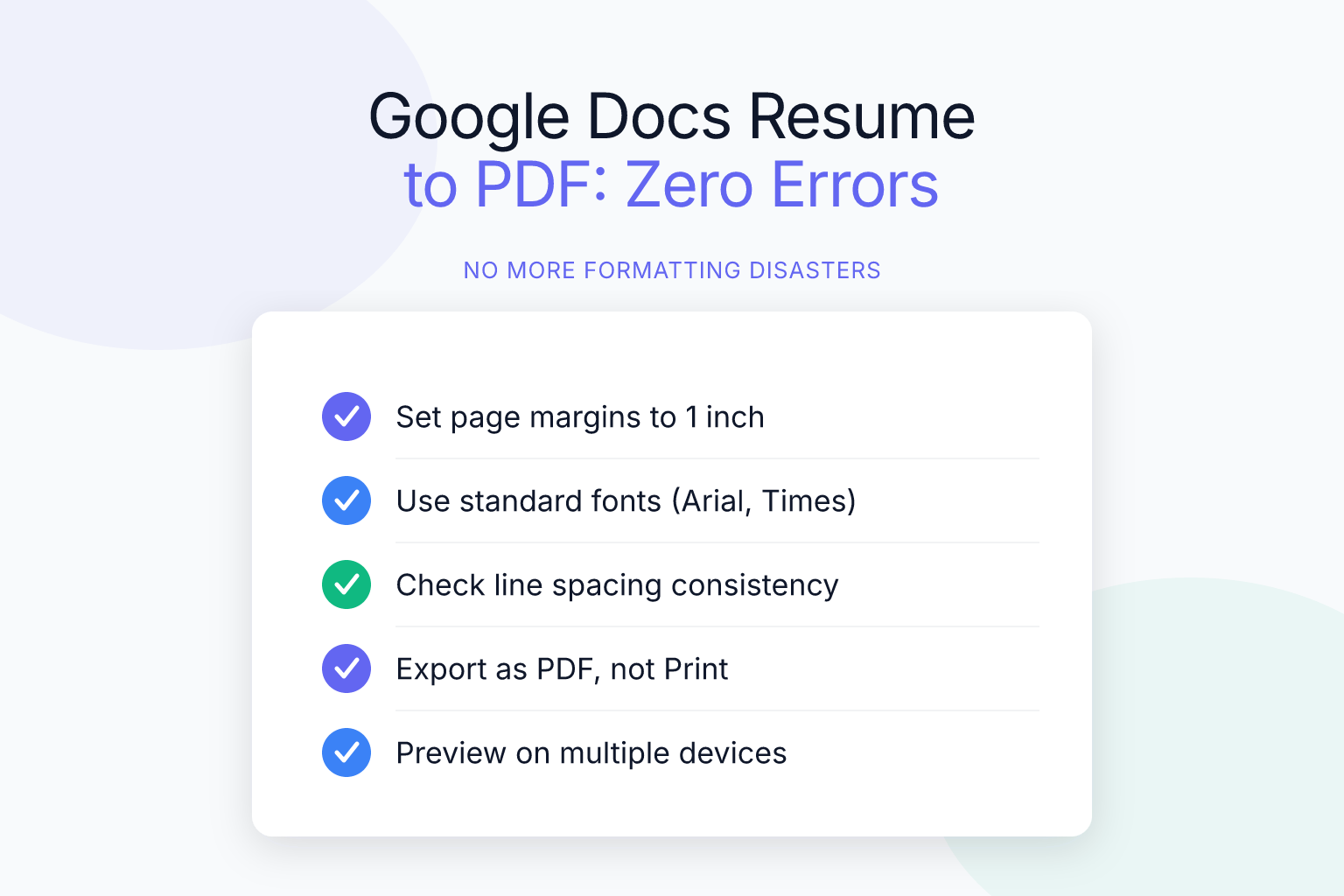
| Stick to standard fonts (Arial, Calibri, Georgia) | Custom fonts may not embed correctly and can cause missing characters | 2 minutes |
| Set margins to at least 0.5 inches on all sides | Prevents text from being cut off when the PDF is printed or viewed on different devices | 1 minute |
| Open the PDF in a different viewer and run an ATS check | Catches formatting errors and parsing issues before you submit | 5 minutes |
Why Google Docs to PDF Conversion Can Break Your Resume Formatting
Google Docs is a word processor designed for on-screen editing, not for print-ready layout. When you export to PDF, the system translates your document into a fixed-layout format. That translation can go wrong if your resume contains elements that don’t convert cleanly.
The most common culprits:
- Tables used for layout. Many people use invisible tables to create two-column sections (e.g., skills on the left, experience on the right). Google Docs often adds extra padding or shifts cell borders during PDF export, causing misalignment.
- Text boxes and drawings. These are rendered as images in the PDF, which can change their position or cause text to overlap.
- Custom fonts. If you use a font that isn’t installed on the PDF viewer’s system, the PDF may substitute a different font, altering spacing and line breaks.
- Page breaks inserted manually. A page break that looks perfect in Google Docs can push content to the wrong page in the PDF if the margins or font rendering differ slightly.
- Headers and footers. These can disappear or overlap with body text if not set up correctly.
Even the simple act of using Google Docs’ “Print” dialog to save as PDF (instead of the “Download” menu) can introduce errors, because the print engine may reflow text based on your local printer settings.
Step-by-Step: How to Export Your Google Docs Resume as a PDF
Follow these steps to minimize conversion errors:
- Finalize your content and formatting. Before exporting, double-check that your resume uses consistent fonts, no tables for layout, and standard margins (1 inch is safe). Remove any text boxes or drawings.
- Click File → Download → PDF Document (.pdf). Do not use File → Print → Save as PDF. The “Download” option uses Google’s own PDF renderer, which is more reliable for preserving the on-screen layout.
- Choose a save location and name the file. Use a professional, ATS-friendly file name like
John-Doe-Resume-2026.pdf. Avoid spaces, special characters, or version numbers like “final_v3”. - Open the PDF in a dedicated viewer. Don’t rely on Google Chrome’s built-in preview. Open the file in Adobe Acrobat Reader (free) or another standalone PDF application. This reveals issues that browser previews smooth over.
- Check every page. Look for text cut off at the bottom, overlapping elements, missing bullet points, and font substitutions. If you spot a problem, go back to the Google Doc and fix the root cause before re-exporting.
Common Formatting Errors and How to Fix Them
1. Text Spilling Off the Page or Margins Shifting
Cause: Custom margins set too narrow, or a table extending beyond the page width. Fix: Set all margins to at least 0.5 inches (File → Page setup). If you used a table, remove it and reformat the section using tabs or columns instead. Google Docs’ column feature (Format → Columns) converts more cleanly than tables.
2. Bullet Points Disappearing or Indenting Incorrectly
Cause: Nested lists or custom bullet symbols that don’t embed in the PDF. Fix: Use Google Docs’ built-in bulleted list tool. Avoid manually typing dashes or asterisks. If indentation is off, adjust the list indent markers on the ruler, not by adding spaces.
3. Fonts Changing or Looking Different
Cause: You used a font that isn’t embedded in the PDF, or the PDF viewer substituted a different font. Fix: Stick to fonts that are universally available: Arial, Calibri, Georgia, Helvetica, or Times New Roman. Before exporting, select all text and set the font to one of these. Also, avoid using bold and italic on custom fonts — they may not render correctly.
4. Headers and Footers Disappearing
Cause: Headers and footers in Google Docs are treated as separate layers; some PDF viewers hide them by default. Fix: If you must include a header (e.g., your name and contact info), place it in the main body of the document instead of the header section. This guarantees it appears on every page. Alternatively, use the “Different first page” option and test thoroughly.
5. Hyperlinks Not Working
Cause: Using the “Print to PDF” method strips hyperlinks. Fix: Always use File → Download → PDF Document. This preserves clickable links. After exporting, hover over your email address and LinkedIn URL in the PDF to confirm they’re active.
How to Check Your PDF Resume for ATS Compatibility
A visually clean PDF doesn’t guarantee an applicant tracking system (ATS) can read it. Many ATS platforms parse the text layer of your PDF, and formatting quirks can scramble the data. For example, a two-column layout might cause the ATS to read across columns instead of down, mixing your skills with your work history.
After you export your PDF, run it through a free ATS resume checker. Upload your file and get a section-by-section report that shows exactly what the ATS sees — your name, contact info, work experience, and skills. If the checker flags missing or jumbled content, you’ll know the PDF conversion introduced a parsing problem.
Check your resume’s ATS score free →
This step is especially important if you used any multi-column formatting in Google Docs. Even if the PDF looks fine to your eye, the ATS may read the columns out of order. The score checker will reveal that instantly.
Alternative: Build Your Resume with a Dedicated Resume Builder
If you find yourself repeatedly fighting formatting errors every time you update your resume, consider a tool that’s purpose-built for the job. Google Docs is a general word processor; it wasn’t designed to produce ATS-optimized, print-ready resumes.
ResumeMate’s free AI resume builder lets you create a resume from scratch or upload your existing content, then exports a clean, single-column PDF that’s been tested against modern ATS platforms like Workday, Greenhouse, and Lever. You don’t have to worry about tables, text boxes, or font embedding — the builder handles all of that automatically.
Because the PDF is generated directly from structured resume data (not a word processor layout), there’s no risk of conversion errors. You can also tailor your resume to specific job descriptions using the built-in AI, then download a fresh PDF in seconds.
How to Name and Save Your PDF Resume for Job Applications
Once you have a clean PDF, the file name matters more than you think. Recruiters often download dozens of resumes and search by file name. A generic name like “resume.pdf” or “GoogleDocsExport.pdf” looks unprofessional and can get lost. Many applicant tracking systems extract your name from the file name, so a clear, professional name helps ensure your application is correctly filed.
Use this naming convention: FirstName-LastName-Resume-2026.pdf. If you’re applying for a specific role, you can add the company or job title: Jane-Doe-Product-Manager-Resume.pdf. Avoid spaces (use hyphens), special characters, and version numbers like “v2” or “final”. When you save the file, store it in a dedicated folder on your computer or cloud drive with a consistent naming structure for each version. This prevents you from accidentally sending an outdated resume.
For a deeper dive into file naming best practices and what ATS systems prefer, read our guide on how to name your resume file for ATS and recruiters. For more tips on avoiding common resume pitfalls, see our guide on resume formatting mistakes that cost interviews.
Final Checklist Before You Submit Your PDF Resume
Before you attach that PDF to an application, run through this quick checklist. Even a single overlooked issue can cause your resume to be rejected by an ATS or look unprofessional to a recruiter. Taking two minutes to verify these points can save you from missing out on an interview.
- Exported using File → Download → PDF Document (not Print).
- Opened the PDF in Adobe Acrobat Reader or a non-browser viewer — no layout breaks.
- All fonts render correctly; no missing characters or odd spacing.
- Hyperlinks (email, LinkedIn, portfolio) are clickable.
- Margins are consistent; no text is cut off at the edges.
- File name follows the
FirstName-LastName-Resume.pdfformat. - Ran the PDF through an ATS resume checker and confirmed all sections parse correctly.
- The resume is tailored to the job description (if not, learn how to tailor it here).
If you check every box, your resume will look identical on any screen and pass through most ATS filters without a hitch. For an extra layer of confidence, consider having a friend review the PDF on a different device, or use a tool that simulates ATS parsing. Remember, a flawless PDF is your first impression — make it count.
Frequently Asked Questions
Q: Why does my Google Docs resume look different when I save it as a PDF?
A: Google Docs uses a different rendering engine for PDF export than for on-screen display. Elements like tables, custom fonts, and text boxes often shift because they aren’t translated perfectly into the fixed PDF layout. Using the “Download as PDF” option instead of “Print” reduces these issues, but removing complex formatting is the most reliable fix.
Q: Can I use Google Docs’ “Print to PDF” feature instead?
A: It’s not recommended. Print-to-PDF relies on your computer’s print driver and browser settings, which can strip hyperlinks, alter margins, and reflow text. Always use File → Download → PDF Document to get a more accurate conversion.
Q: How do I stop my two-column resume from breaking in the PDF?
A: Two-column layouts created with tables are the most common source of breakage. Replace the table with Google Docs’ built-in Columns feature (Format → Columns), which converts more cleanly. Even better, switch to a single-column layout — it’s safer for ATS parsing and rarely causes PDF errors.
Q: What’s the best font to use in Google Docs for a resume PDF?
A: Stick to standard fonts that are installed on virtually every system: Arial, Calibri, Georgia, Helvetica, or Times New Roman. These embed reliably in PDFs and won’t be substituted. Avoid decorative or custom fonts, even if they look good on screen.
Q: How can I test if my PDF resume is ATS-friendly?
A: Use a free ATS resume checker. Upload your PDF and the tool will show you exactly what text the ATS extracts — your name, contact details, work history, and skills. If anything is missing or jumbled, you’ll know the PDF conversion caused a parsing error. Try ResumeMate’s free score checker.
Q: Should I just build my resume directly as a PDF instead of using Google Docs?
A: If you’re comfortable with design tools, you can. But most job seekers find it easier to use a resume builder that exports ATS-optimized PDFs without manual formatting. ResumeMate’s builder is free and eliminates the Google Docs conversion step entirely.
Track Every Application While You Job Hunt
Stop losing track of where you’ve applied. The ResumeMate Job Tracker is a free Chrome extension that tracks every application, deadline, and follow-up in one place — right from your browser.