How to Use LinkedIn Open to Work Feature Effectively
If you’re actively job searching, how to use LinkedIn Open to Work feature effectively can be the difference between a trickle of recruiter messages and a flood of relevant opportunities. The green “Open to Work” photo frame is the most visible part, but the real power lies in the behind‑the‑scenes settings that signal your availability to recruiters without broadcasting it to your entire network. This guide walks you through every step, from turning the feature on to pairing it with other LinkedIn tools, so you can attract the right attention while staying in control of your job search.
Key Takeaways
- The Open to Work feature has two layers: a public photo frame and a private recruiter signal — you can use one, both, or neither.
- Recruiters using LinkedIn Recruiter can filter candidates by “Open to Work,” so keeping the private setting on dramatically increases your visibility even without the green frame.
- Optimize your profile headline, About section, and skills before activating Open to Work to convert profile views into interview requests.
- You can hide the feature from your current company’s recruiters, but LinkedIn’s blocking isn’t foolproof — combine it with other privacy steps.
- Pair Open to Work with job alerts, networking, and a polished resume to create a complete job search system.
Summary Table
| What to Do | Why It Matters | Time |
|---|---|---|
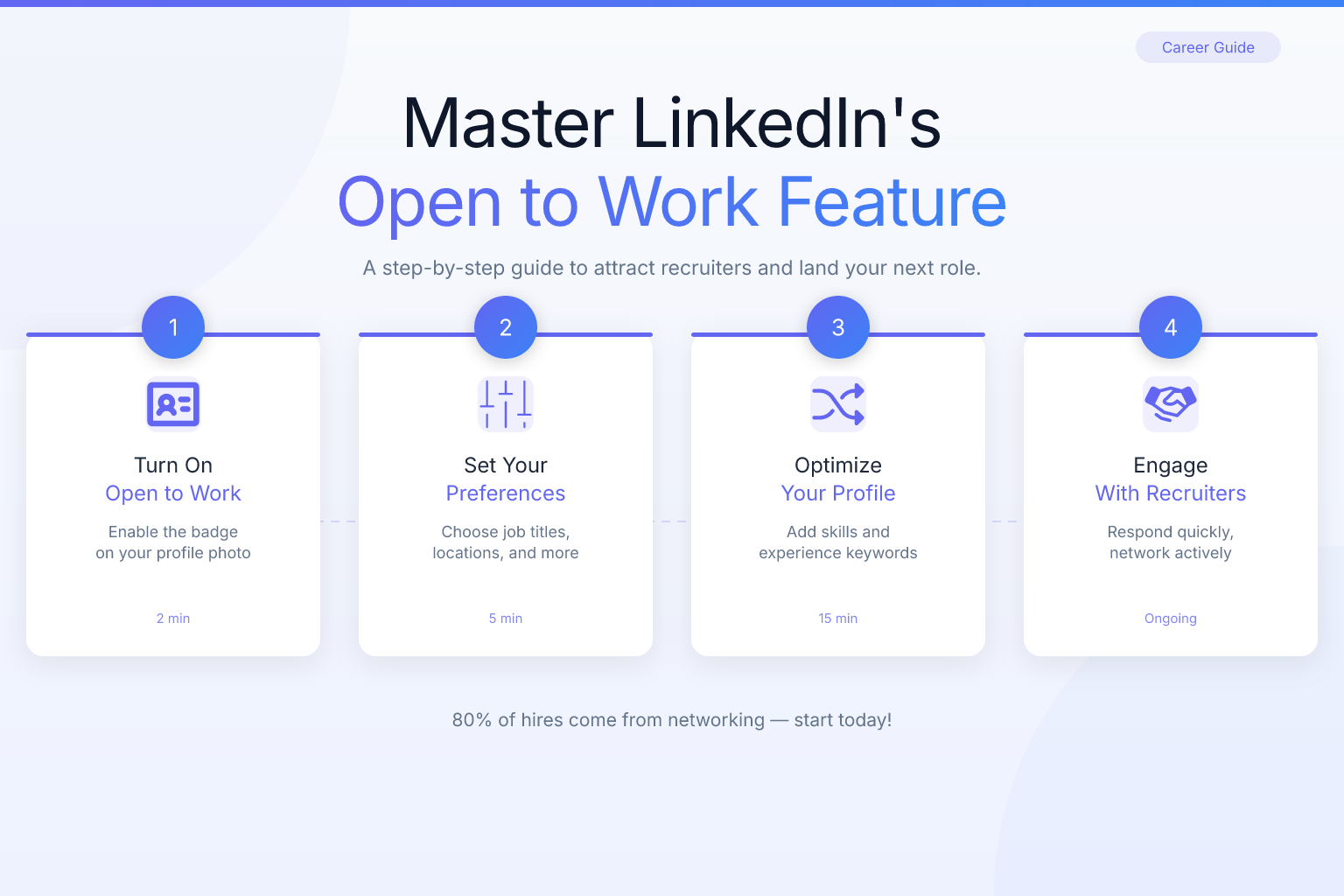
| Turn on the private “Open to Work” setting | Makes you discoverable to recruiters using LinkedIn Recruiter without a public badge | 2 minutes |
| Add job titles, locations, and start date preferences | Helps recruiters find you for relevant roles and filters out mismatches | 3 minutes |
| Update your headline and About section | Converts profile views into connection requests and interview invitations | 20–30 minutes |
| Turn off the green photo frame if employed | Prevents your current employer from seeing you’re job searching | 1 minute |
| Combine with job alerts and networking | Creates a multi‑channel job search that doesn’t rely on inbound messages alone | Ongoing |
What Is the LinkedIn Open to Work Feature?
LinkedIn’s Open to Work feature is a built‑in tool that tells recruiters and your network you’re looking for new job opportunities. It has two parts:
- The private recruiter signal — This is the core of the feature. When you turn it on, LinkedIn adds a hidden indicator to your profile that only recruiters using LinkedIn Recruiter can see. It doesn’t show up on your public profile, and your current employer’s recruiters are supposed to be blocked from seeing it (more on that later).
- The public photo frame — This adds a green “#OpenToWork” banner around your profile photo. It’s visible to everyone on LinkedIn, including your connections, colleagues, and anyone who views your profile.
You can use either or both. Many job seekers activate the private signal but skip the photo frame, especially if they’re currently employed. The private signal alone is enough to get you into recruiter search results, which is where most of the value lies.
How to Turn On Open to Work (Step‑by‑Step)
Activating the feature takes less than two minutes. Here’s exactly how to do it:
- Click your profile picture in the top right of LinkedIn and select View Profile.
- Below your headline, click the Open to button.
- Select Finding a new job.
- Fill in the job preferences form:
- Job titles — Add up to five titles that match what you’re looking for. Use variations (e.g., “Product Manager,” “Senior Product Manager,” “Technical Product Manager”).
- Job locations — Add up to five locations. You can choose “Remote” as a location type.
- Start date — Choose “Immediately,” “Within 1 month,” etc. This helps recruiters prioritize.
- Employment types — Select full‑time, part‑time, contract, temporary, or internship.
- Under Choose who sees you’re open, decide whether to share with:
- All LinkedIn members (this adds the green photo frame), or
- Recruiters only (no photo frame, but recruiters using LinkedIn Recruiter can see you’re open).
- Click Add to profile.
Once you’ve completed these steps, your preferences are saved. You can return anytime to edit them or turn the feature off.
Choosing Between “All LinkedIn Members” and “Recruiters Only”
This is the most important decision you’ll make with the feature. Here’s how to think about it:
When to use “All LinkedIn Members” (the green frame)
- You’re unemployed and want your network to know you’re looking.
- You’re in a role where your employer already knows you’re leaving (e.g., contract ending, layoff announced).
- You want to leverage your connections for referrals — the frame can prompt people to reach out with opportunities.
When to use “Recruiters Only”
- You’re currently employed and don’t want your boss or colleagues to see you’re job searching.
- You’re exploring opportunities passively and prefer to keep your search confidential.
- You want to avoid the perception that you’re “desperate” — some hiring managers still hold outdated biases against the green frame.
Even with “Recruiters Only,” LinkedIn states it takes steps to prevent recruiters at your current company from seeing your Open to Work status. However, LinkedIn’s blocking isn’t perfect — if your company uses multiple recruiter seats or third‑party agencies, your status could still be visible. Treat the privacy as a strong filter, not a guarantee.
How to Optimize Your Profile Before Activating Open to Work
Turning on Open to Work without a strong profile is like putting a “For Sale” sign on a house with no photos. Recruiters will click, glance, and move on. Before you activate the feature, spend 30 minutes on these high‑impact updates:
1. Rewrite your headline to show what you do, not just your job title
Your headline appears right under your name in search results. Instead of “Marketing Manager,” try “Marketing Manager | B2B SaaS | Demand Generation & ABM.” Include keywords recruiters search for. A strong formula: [Job Title] + [Industry/Niche] + [Key Skill or Result]. For example, “Full‑Stack Developer | Fintech | React, Node.js, AWS.” If you’re targeting cloud roles, tailor your headline to match the keywords in our AWS jobs guide or Azure developer guide.
2. Fill out the About section with a clear value proposition
Write 3–5 short paragraphs that answer: what you do, who you do it for, and what results you’ve achieved. Use first person. End with a call to action like “Open to product management roles in fintech — let’s connect.” A simple template:
- Paragraph 1: Who you are and what you’re passionate about.
- Paragraph 2: Key achievements with numbers (e.g., “Increased organic traffic by 40% in 6 months”).
- Paragraph 3: What you’re looking for now and how to reach you.
3. Add skills and get endorsements
LinkedIn Recruiter uses skills as search filters. List at least 15 relevant skills. Ask former colleagues for endorsements — profiles with 5+ endorsements per skill rank higher in recruiter searches. Prioritize skills that appear in job descriptions for your target roles.
4. Update your experience with accomplishments, not just duties
For each role, write 3–5 bullet points that start with action verbs and include measurable results. “Increased organic traffic by 40% in 6 months” beats “Responsible for SEO.” Use the CAR method (Challenge, Action, Result) to structure each bullet.
5. Upload a professional, recent photo
Profiles with photos get 21 times more profile views and 9 times more connection requests, according to LinkedIn’s own data. Use a clear headshot with a neutral background.
Once your profile is ready, run it through a free ATS resume checker to see how your resume stacks up — many recruiters will ask for a resume after viewing your profile, and you want both to be equally strong.
How to Use Open to Work Without Alerting Your Current Employer
If you’re employed, the biggest fear is your boss finding out. Here’s how to minimize that risk:
- Use “Recruiters Only” mode — This is the first line of defense. It removes the public badge and limits visibility to recruiters with LinkedIn Recruiter seats.
- Don’t post about your job search — Avoid status updates like “Excited to announce I’m looking for new opportunities.” Even without the frame, that’s a public signal.
- Be strategic about engagement — Liking and commenting on job‑related posts from recruiters or companies can tip off observant colleagues. Consider using a separate browser or being mindful of your activity feed.
- Check your company’s LinkedIn Recruiter setup — If your employer uses a third‑party recruiting firm, your Open to Work status might be visible to that agency. There’s no way to block this completely, so assume some risk.
- Keep your profile updates subtle — If you suddenly overhaul your entire profile overnight, it can raise suspicion. Make changes gradually over a week or two.
- Turn off “Share profile edits with your network” — Before making any changes, go to your privacy settings and toggle off this option. That way, your connections won’t be notified every time you tweak your headline or summary.
- Use a separate browser or incognito window for job‑search activities — This prevents your company’s IT from seeing your browsing history if they monitor it, and it keeps your LinkedIn activity isolated from your work accounts.
If you’re concerned about privacy, you can also network on LinkedIn without being awkward — building genuine relationships often leads to opportunities without any public signal at all.
Common Mistakes That Make Open to Work Less Effective
Even with the feature turned on, many job seekers see little traction because of these avoidable errors:
1. Leaving job preferences blank or too vague
If you don’t specify job titles and locations, LinkedIn can’t match you to relevant recruiter searches. Be specific. “Software Engineer” is better than “Technology.”
2. Using the green frame with an incomplete profile
Recruiters who see the frame will click your profile. If your About section is empty and your experience is a list of job titles, they’ll move on. The frame draws attention — make sure your profile rewards it.
3. Ignoring the “Start date” field
If you’re available immediately but your profile says “Within 3 months,” recruiters with urgent needs may skip you. Keep this field accurate.
4. Not updating your preferences when your search changes
If you land a job or shift your target role, update your Open to Work settings. Stale preferences lead to irrelevant messages and wasted time.
5. Relying on Open to Work alone
The feature is a passive tool — it helps recruiters find you, but it doesn’t replace active job searching. Pair it with LinkedIn job alerts and direct outreach to hiring managers.
6. Not customizing job titles for different role types
If you’re open to both “Product Manager” and “Project Manager,” list both as separate titles. Using a single generic title like “Manager” will cause you to miss out on targeted searches.
7. Forgetting to manage the “Career interests” page
LinkedIn’s “Career interests” section (accessible from your profile dashboard) lets you turn Open to Work on/off and adjust preferences without navigating through the profile button. Many users don’t realize it exists, leading to outdated settings.
Pro Tips for Maximizing the Open to Work Feature
These quick, actionable tips will help you get the most out of the feature:
- Use all five job title slots — Even if you’re targeting one role, add variations (e.g., “UX Designer,” “Product Designer,” “UI/UX Designer”) to capture different search terms.
- Update your preferences every two weeks — Recruiters often filter by “recently updated” profiles. A small tweak (like re‑entering a job title) can bump your visibility.
- Add a “Career interests” note — In the same settings area, you can write a short note to recruiters (e.g., “Only interested in remote roles in healthtech”). This appears in Recruiter search results and helps filter out mismatches.
- Combine with LinkedIn Learning — Completing a relevant course and adding the certificate to your profile shows recruiters you’re actively upskilling, which pairs well with the Open to Work signal.
- Engage with target company pages — Follow companies you’d like to work for and comment thoughtfully on their posts. Recruiters often notice active followers, and your Open to Work status makes you a warm lead.
- Use the “I’m interested” button — On a company’s LinkedIn page, click “I’m interested” under the Jobs tab. This flags you to that company’s recruiters even without a specific opening.
- Check your visibility regularly — Ask a trusted friend who works at a different company (and has a Recruiter seat) to confirm whether your Open to Work signal is appearing. This helps you verify that the settings are working as intended.
How to Combine Open to Work with Other LinkedIn Job Search Tools
Open to Work works best as part of a broader LinkedIn strategy. Here’s how to layer it with other features:
Set up job alerts for your target roles
Go to the Jobs tab, search for your desired title and location, and toggle on “Job alerts.” You’ll get email and push notifications when new roles are posted. This ensures you’re among the first applicants — a critical advantage when roles close quickly.
Use the “I’m interested” button on company pages
When you visit a company’s LinkedIn page, click the “I’m interested” button under the “Jobs” tab. This signals to recruiters at that company that you’re open to opportunities there, even if no specific role is posted.
Engage with content from target companies
Comment thoughtfully on posts from companies you’d like to work for. Recruiters often review who’s engaging with their content. A single insightful comment can lead to a profile view and a connection request.
Reach out for referrals strategically
A warm referral dramatically increases your chances of an interview. If you see a job posting at a company where you have a connection, use a proven LinkedIn referral request template to ask for an introduction — don’t just hit “Easy Apply” and hope.
Keep your resume aligned with your LinkedIn profile
Recruiters will cross‑reference your profile with your resume. Inconsistencies in job titles, dates, or accomplishments raise red flags. Use a free AI resume builder to create a clean, ATS‑friendly resume that matches your LinkedIn story. You can also browse the ResumeMate job board to find curated openings that match your preferences, then apply with a resume built in our free builder.
When to Turn Off Open to Work (and What to Do Next)
Knowing when to deactivate the feature is just as important as knowing when to turn it on.
Turn it off when:
- You’ve accepted a job offer and started the new role. Once you have an offer, don’t forget to negotiate — our guide on how to ask for a signing bonus can help you secure extra compensation.
- You’re no longer actively looking and want to avoid irrelevant recruiter messages.
- You’re receiving too many low‑quality inquiries and need to refine your preferences before reactivating.
How to turn it off:
- Go to your profile and click the Open to button.
- Click the edit icon next to “Finding a new job.”
- Select Delete or toggle the feature off.
What to do after turning it off:
- Update your profile to reflect your new role and responsibilities.
- Thank any recruiters who reached out — even if you weren’t interested, a polite reply keeps the door open for future opportunities.
- Continue nurturing your network. The relationships you built during your search remain valuable long after you land the job.
If you’re still in the thick of your search, make sure you’re tracking every application. The ResumeMate Job Tracker is a free Chrome extension that logs every job you apply to, along with deadlines and follow‑ups, so nothing slips through the cracks.
FAQ
Q: Can my current employer see my Open to Work status if I choose “Recruiters Only”?
A: LinkedIn says it blocks recruiters at your current company from seeing your Open to Work signal, but the blocking isn’t guaranteed. If your employer uses multiple recruiter seats, a third‑party agency, or a recruiter who recently left the company, your status could still be visible. Treat it as a privacy filter, not a lock.
Q: Does the green Open to Work frame hurt my chances with recruiters?
A: Some recruiters and hiring managers have admitted bias against the green frame, associating it with desperation. However, many others see it as a helpful signal. If you’re unemployed, the frame can increase profile views and connection requests. If you’re employed, the private setting is usually the safer choice.
Q: How long should I keep Open to Work turned on?
A: Keep it on until you’ve accepted a job offer and started the new role. If you’re passively looking, you can leave it on indefinitely — just update your preferences if your target role or location changes.
Q: Can I use Open to Work if I’m freelancing or looking for contract work?
A: Yes. When you set your preferences, select “Contract” or “Temporary” under employment types. You can also add “Freelance” or “Consultant” as a job title. This helps recruiters find you for project‑based roles.
Q: Will turning on Open to Work affect my LinkedIn algorithm visibility?
A: LinkedIn hasn’t confirmed that Open to Work directly boosts your profile in general search results, but recruiters using LinkedIn Recruiter can filter by the Open to Work flag, which significantly increases your chances of appearing in their searches. The feature itself doesn’t penalize your organic reach.
Q: What if I don’t want to use Open to Work at all — can I still get recruited?
A: Absolutely. Many recruiters search for candidates based on skills, experience, and keywords without filtering by Open to Work. A fully optimized profile with a strong headline, detailed experience, and relevant skills can still attract inbound messages. Open to Work simply adds an extra signal.
Q: How do I add Open to Work on LinkedIn?
A: Go to your profile, click the Open to button below your headline, select Finding a new job, fill in your job preferences, choose who can see you’re open, and click Add to profile. The whole process takes under two minutes.
Q: How to show Open to Work only to recruiters?
A: When setting up the feature, under “Choose who sees you’re open,” select Recruiters only. This hides the green photo frame from your public profile and limits the signal to recruiters using LinkedIn Recruiter. Your current employer’s recruiters are supposed to be blocked, but it’s not 100% guaranteed.
Q: How do recruiters find Open to Work candidates on LinkedIn?
A: Recruiters with a LinkedIn Recruiter seat can use the “Open to Work” filter when searching for candidates. This filter surfaces profiles that have the private signal turned on, even if the green frame isn’t visible. In Recruiter Lite, the filter appears under the “Candidate preferences” section.
Q: How to search Open to Work on LinkedIn Recruiter Lite?
A: In Recruiter Lite, start a candidate search, then click “All filters” and look for the “Open to Work” option under “Candidate preferences.” Select it to see only candidates who have signaled they’re open. You can combine it with other filters like location, skills, and years of experience.
Q: How to keep Open to Work active and updated?
A: Your Open to Work status stays active until you manually turn it off. To keep it effective, revisit your job preferences every two weeks — update job titles, locations, and start date to reflect your current search. You can also toggle the feature off and on again to refresh your visibility in recruiter searches.
Q: Where is the Open to Work setting on LinkedIn?
A: The setting lives in two places: the Open to button on your profile (below your headline) and the Career interests page (accessible from your profile dashboard). Both lead to the same preferences form where you can turn the feature on/off and adjust your job preferences.
Track Every Application While You Job Hunt
Stop losing track of where you’ve applied. The ResumeMate Job Tracker is a free Chrome extension that tracks every application, deadline, and follow-up in one place — right from your browser.