Links in Resume: How to Add and Format Hyperlinks (2026 ATS Guide)
Adding hyperlinks on your resume can turn a static document into an interactive portfolio — but only if you format them correctly and know whether anyone actually clicks them. This guide covers how to format links for both human readers and applicant tracking systems, which links are worth including, and how to track clicks so you can see what’s working.
Key Takeaways
- Hyperlinks on a resume should use descriptive anchor text or full URLs, but avoid default blue underlined styling that looks unprofessional.
- Use UTM parameters or link shorteners like Bitly to track clicks on portfolio, LinkedIn, or project links — and create a unique link per job application to see which companies engage.
- Most modern ATS parse hyperlinks fine, but always include the full URL as plain text somewhere and test your resume in a plain-text editor to be safe.
- Only include 2–4 high-value links (portfolio, GitHub, LinkedIn, publications) that directly support your candidacy; skip generic personal sites or irrelevant social media.
- Review click data weekly and adjust which links you include based on real recruiter behavior.
| What to Do | Why It Matters | Time |
|---|---|---|
| Use descriptive anchor text (e.g., “GitHub Portfolio”) instead of raw URLs | Improves readability and shows professionalism | 5 min |
| Add UTM parameters to each link before sending applications | Lets you see which job applications led to clicks | 10 min per job |
| Test your resume in plain text to ensure links are visible and clickable | Prevents broken or hidden links in ATS | 15 min |
| Include only 2–4 high-value links | Avoids clutter and keeps focus on your experience | 5 min |
| Review click data weekly and adjust which links you include | Optimizes your resume based on real recruiter behavior | 10 min/week |
How to Format Hyperlinks on a Resume
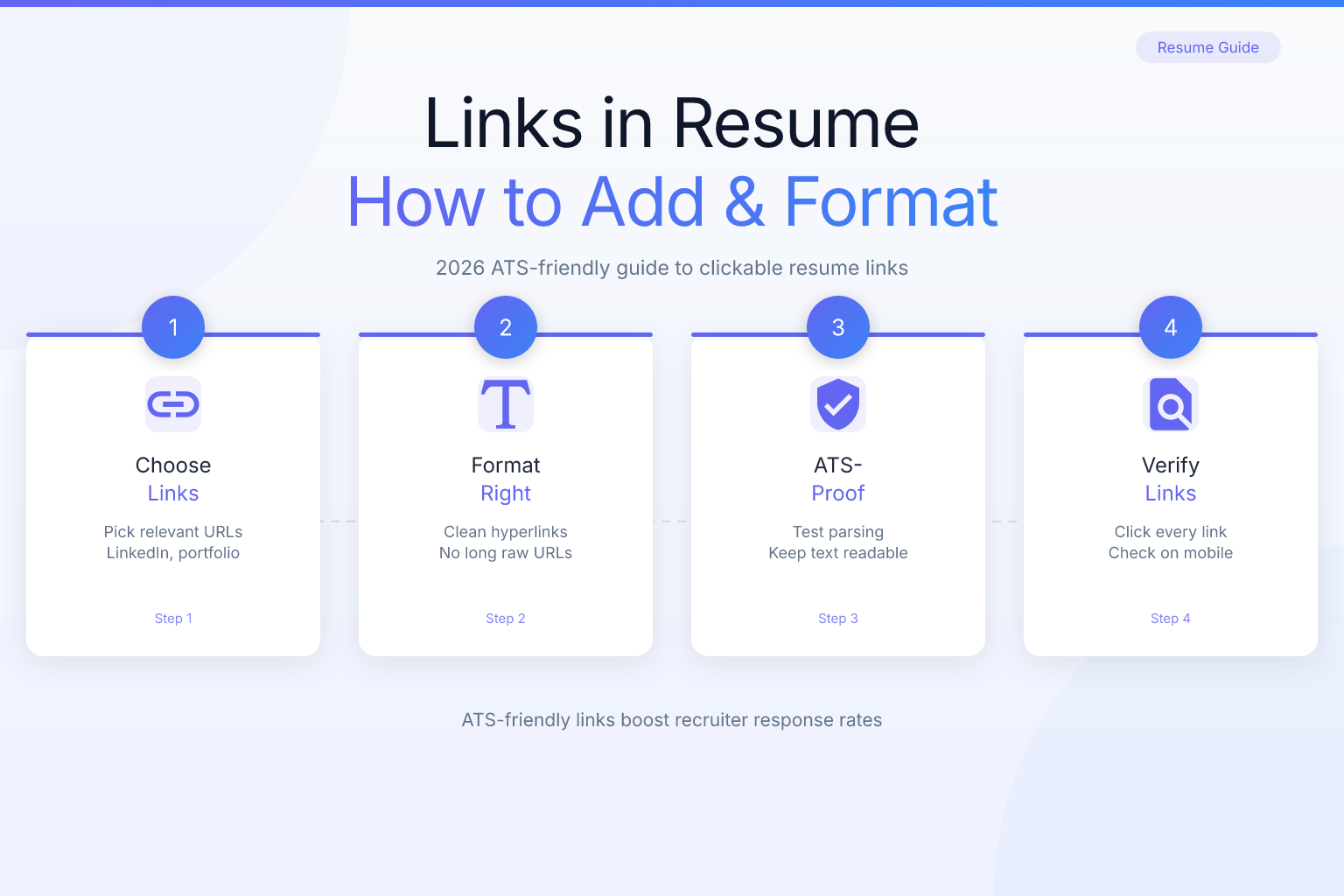
Formatting hyperlinks on a resume is about balancing clickability for human readers with parseability for applicant tracking systems. The safest approach is to include the full URL as plain text, even if you also make the text clickable in your PDF. That way, if an ATS strips hyperlink metadata, the URL is still visible and can be copied.
Here’s a step-by-step method that works in most word processors and resume builders:
- Type the descriptive text you want to be clickable, such as “Portfolio: yourname.com” or “GitHub: username”.
- Select the text and insert a hyperlink (Ctrl+K in Word or Google Docs).
- Change the link color to match your body text (usually black or dark gray) and remove the underline. Default blue underlined text looks like a web link and can distract from your content.
- If your resume builder doesn’t support hyperlinks, simply paste the full URL as plain text — for example,
https://github.com/yourusername. This is perfectly acceptable and often preferred by ATS. - Export as a PDF and test the link by opening the PDF and clicking it. Then copy all text from the PDF into a plain-text editor (like Notepad) and confirm the URL appears correctly.
When using a resume builder like ResumeMate’s free AI resume builder, check whether the text fields support hyperlinks. If they do, use them; if not, paste the full URL as plain text. ResumeMate exports clean, ATS-safe PDFs, so either approach works as long as the URL is visible.
Which Links Should You Include on a Resume?
Not every link belongs on a resume. The goal is to provide quick access to evidence that supports your qualifications — not to list every online profile you own. Here are the most valuable links to include, depending on your field:
- LinkedIn profile — almost universally expected; place it in the header next to your contact info.
- Personal portfolio website — essential for designers, writers, developers, and freelancers.
- GitHub or GitLab — for software engineers and data scientists; link to your profile or specific repositories.
- Behance, Dribbble, or similar — for visual designers and creatives.
- Published articles, papers, or blog posts — for researchers, writers, and subject-matter experts.
- Relevant certifications or course completion pages — only if the credential is directly relevant and the link adds credibility.
For tech roles, a GitHub link is often more important than a portfolio. Our guide on how to write an engineering resume covers how to present projects and code repositories effectively. If you’re a freelancer, a portfolio link is non-negotiable — see how to format freelance work on a resume for examples. And if you have publications, link directly to the article or paper; our post on listing publications on a resume explains where to place them.
Avoid these links:
- Personal social media accounts (Instagram, Facebook, X) unless they are explicitly professional.
- Generic personal websites with no relevant content.
- Links that require a login to view (e.g., private Google Drive folders).
- More than 4–5 links total — too many links clutter the resume and dilute focus.
Best Practices for Hyperlink Text and Placement
How you write and place hyperlinks affects both readability and ATS parsing. Follow these guidelines:
- Use descriptive anchor text instead of “click here.” For example, write “View my portfolio” or “GitHub: johndoe” rather than “Click here for my work.”
- Place links in the header for your LinkedIn and portfolio, and within relevant sections for project-specific links. For example, under each project bullet, add a short line: “Project demo: yourname.com/demo”.
- Keep links short and clean. If a URL is extremely long, use a URL shortener — but be aware that some ATS may not follow redirects. A custom domain shortener (e.g., yourname.com/portfolio) looks more professional than bit.ly/xyz.
- Avoid breaking sentence flow. Put links at the end of a bullet point or on a separate line, not in the middle of a sentence where they interrupt reading.
- Ensure the link text is not the only thing on a line. Always include context, such as “Portfolio: [link]” or “GitHub: [link]”.
- Test every link before sending. A broken link on a resume is worse than no link at all.
How to Track Clicks on Resume Links
Tracking clicks tells you which links recruiters actually open — and which job applications generate the most engagement. You can do this with UTM parameters or link shorteners, both of which are free and easy to set up.
Option 1: UTM parameters (for links to your own website)
If you have a personal website with Google Analytics, append UTM parameters to your portfolio URL. For example:
https://yourname.com/portfolio?utm_source=resume&utm_medium=pdf&utm_campaign=jobtitle-company
Then, in Google Analytics, you can see exactly how many visits came from your resume and which campaign (i.e., which job application) drove them. Create a unique utm_campaign value for each job you apply to — for example, utm_campaign=product-manager-acme — so you can attribute clicks to specific applications.
Option 2: Link shorteners with click analytics
Services like Bitly, Rebrandly, or TinyURL let you create a short link and track how many times it’s clicked. For each job application, create a unique short link, such as bit.ly/yourname-acme. Then, when you check your Bitly dashboard, you’ll see which links were clicked and when.
Important caveats:
- Some ATS or email systems may strip or block shortened links. Test with a plain URL first, or use a custom domain shortener that looks more trustworthy.
- Recruiters may be wary of clicking shortened links from unknown sources. If possible, use a branded short domain (e.g.,
yourname.com/portfolio) instead of a generic bit.ly link. - You can also track clicks on your LinkedIn profile by using a UTM link to your LinkedIn URL, but note that LinkedIn may not pass referrer data reliably. Portfolio clicks are easier to attribute.
Tools for Tracking Resume Link Clicks
Here are the most practical tools for tracking resume link clicks, from simplest to most advanced:
- Bitly — free, easy, provides basic click counts and geographic data. Best for quick setup.
- Rebrandly — allows custom branded short domains (e.g.,
yourname.link/portfolio), which look more professional. Free tier available. - Google Analytics + UTM — if you have a website, this gives the deepest insights (pages viewed, time on site, bounce rate). Requires initial setup but no ongoing cost.
- ClickMeter — more advanced, with conversion tracking and A/B testing. Overkill for most job seekers.
- A simple redirect script on your own domain — if you’re technical, you can create a redirect like
yourname.com/resumethat logs clicks to a database. This gives full control and no third-party dependency.
While these tools track link clicks, they don’t track your job applications themselves. For that, use the ResumeMate Job Tracker Chrome extension — it’s free and logs every application, deadline, and follow-up from your browser. You can note in the tracker which short link you used for each application, so you can correlate clicks with specific jobs.
ATS Considerations for Hyperlinks
Applicant tracking systems vary widely in how they handle hyperlinks. Modern ATS like Workday, Greenhouse, Lever, and iCIMS generally parse hyperlinks in PDFs without issue, but older or custom systems may strip the link metadata and only read the visible text. That’s why the full URL should always appear as plain text, even if it’s also clickable.
Here’s how to ensure your hyperlinks survive ATS parsing:
- Always include the full URL as text. For example, write “Portfolio: https://yourname.com” instead of just “Portfolio” with a hidden hyperlink.
- Avoid using URL shorteners unless you’ve tested that the ATS follows redirects. Some systems may flag shortened links as suspicious or fail to resolve them.
- Test your resume in plain text. Copy all text from your PDF into a plain-text editor and check that every URL appears correctly and is not broken across lines.
- Use a single-column layout if possible. Multi-column resumes can sometimes cause ATS to misread link placement. Most ResumeMate templates are single-column, which is the safest choice.
- Run your resume through a score checker. The ResumeMate resume score checker is free and gives you an ATS-readiness score with section-by-section feedback, including whether your links and formatting parse correctly.
If you’re applying to a company that explicitly requests a plain-text resume or uses a very old ATS, skip hyperlinks entirely and just list URLs as plain text. The link won’t be clickable, but the recruiter can still copy and paste it.
Common Mistakes to Avoid with Resume Hyperlinks
Even well-intentioned hyperlinks can hurt your resume if you make these mistakes:
- Using too many links. More than 4–5 links clutters the resume and makes it look like a link farm. Stick to the essentials.
- Keeping the default blue underlined style. This looks like a web page, not a professional document. Change the color to match your body text and remove the underline.
- Using shortened links that look spammy. A bit.ly link with random characters can make recruiters hesitant to click. Use a custom domain or the full URL.
- Not testing links before sending. A broken link is worse than no link. Click every link in your PDF before you apply.
- Including irrelevant or personal links. Your Instagram or personal blog about cooking doesn’t belong on a resume unless it’s directly relevant to the job.
- Forgetting to update links when you change your portfolio or LinkedIn URL. Old links lead to 404 pages and make you look careless.
- Placing links in the header that get cut off or misaligned. Some ATS may truncate long URLs in the header. Keep header links short and simple.
FAQ
Q: Should I include hyperlinks on my resume?
A: Yes, if you have relevant online content like a portfolio, GitHub, LinkedIn, or publications. Hyperlinks make it easy for recruiters to see your work, but only include 2–4 high-value links and always show the full URL as plain text for ATS safety.
Q: How do I format a hyperlink on a resume so it doesn’t look like a web link?
A: Select the text you want to be clickable, insert the hyperlink, then change the font color to match your body text (usually black) and remove the underline. This keeps the link functional but visually professional.
Q: Can applicant tracking systems read hyperlinks in a PDF resume?
A: Most modern ATS parse hyperlinks fine, but some older systems may strip the link metadata. To be safe, always include the full URL as visible text, and test your resume by copying all text into a plain-text editor.
Q: How do I track clicks on my resume links?
A: Use UTM parameters on your portfolio URL (if you have Google Analytics) or a link shortener like Bitly. Create a unique link for each job application so you can see which companies clicked your links.
Q: Are shortened URLs safe to use on a resume?
A: They can be, but some ATS may block or not follow redirects, and recruiters may be wary of generic short links. If you use a shortener, choose a custom branded domain (e.g., yourname.com/portfolio) and test that the link works in a plain-text environment.
Q: How many hyperlinks should a resume have?
A: Aim for 2–4 links maximum. Include your LinkedIn profile, portfolio or GitHub, and one or two project or publication links. Too many links distract from your experience and can look unprofessional.
Q: What if my resume builder doesn’t support hyperlinks?
A: Simply paste the full URL as plain text. That’s perfectly acceptable and often preferred by ATS. You can also use a free builder like ResumeMate that exports clean PDFs where you can add links manually if needed.
Track Every Application While You Job Hunt
Stop losing track of where you’ve applied. The ResumeMate Job Tracker is a free Chrome extension that tracks every application, deadline, and follow-up in one place — right from your browser.