Using LinkedIn Creator Mode for job search visibility is one of the most underrated moves you can make when you’re actively looking for a new role. Most job seekers treat LinkedIn as a static online resume — you fill out your profile, apply to jobs, and wait. Creator Mode flips that dynamic. It turns your profile into a content platform, changes your primary button from “Connect” to “Follow,” and gives you tools that help recruiters and hiring managers discover you without you having to send a single connection request.
If you’re tired of sending applications into the void, Creator Mode is a free, built-in way to get your name in front of people who are already looking for someone with your skills. This guide walks through exactly how to turn it on, what to post, and how to pair it with a strong resume and job tracking system so visibility actually turns into interviews.
Overview
Key Takeaways
- Turning on LinkedIn Creator Mode changes your “Connect” button to “Follow,” so recruiters and hiring managers can see your content and profile without needing to accept a connection request.
- Creator Mode lets you add up to five profile hashtags, which helps your posts appear in topic feeds that recruiters actively monitor.
- Posting 2–3 times per week about your industry, skills, or job search journey builds credibility and can lead to inbound messages from hiring teams.
- Use Creator Mode’s built-in analytics to see which topics get the most engagement, then double down on content that showcases your expertise.
- Pair Creator Mode with a clean, ATS-friendly resume and a job tracker so you can convert profile views into applications and follow-ups.
Summary Table
| What to Do | Why It Matters | Time |
|---|---|---|
| Turn on Creator Mode in settings | Changes Connect to Follow, expands your reach beyond your network | 5 minutes |
| Add 5 relevant profile hashtags | Helps your content appear in topic feeds recruiters browse | 10 minutes |
| Post 2–3 times per week | Builds visibility and positions you as a knowledgeable candidate | 1–2 hours/week |
| Review Creator Mode analytics monthly | Identify which content resonates and adjust your strategy | 30 minutes/month |
| Link to your resume or portfolio in posts | Converts profile views into actual job applications | 15 minutes |
What Is LinkedIn Creator Mode and How to Turn It On
What Is LinkedIn Creator Mode?
LinkedIn Creator Mode is a profile setting that optimizes your account for content creation and discovery. When you turn it on, several things change:
- Your primary button switches from “Connect” to “Follow.” Anyone can follow you without a mutual connection, and your posts show up in their feed.
- You can add up to five hashtags to your profile intro, which signal the topics you talk about most.
- Your “Activity” section moves higher on your profile, so visitors see your recent posts before your work experience.
- You get access to creator tools like LinkedIn Live, newsletters, and a “Featured” section to pin your best content.
For job seekers, the biggest benefit is discoverability. Recruiters don’t just search for candidates by job title — they also browse hashtags, follow industry conversations, and look at who’s consistently sharing useful insights. When you post under a hashtag like #ProjectManagement or #DataScience, your content can appear in front of people who are hiring for those exact roles, even if they’ve never heard of you.
Think of it this way: a traditional LinkedIn profile is a billboard on a side street. Creator Mode moves that billboard to the highway. You still need a strong profile underneath — and that’s where LinkedIn profile optimization for job search comes in — but Creator Mode gives you the traffic.
How to Turn On Creator Mode (Step by Step)
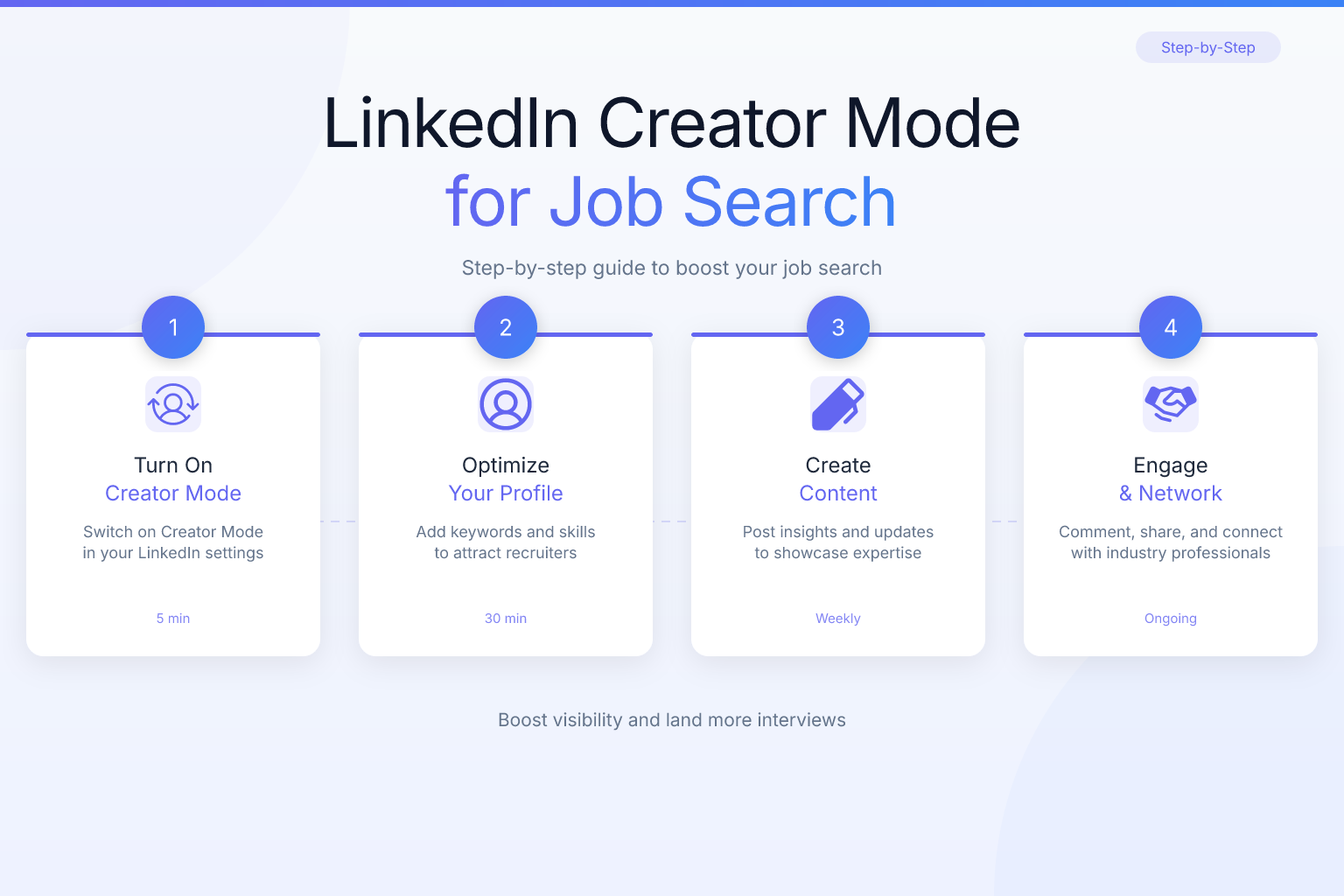
Turning on Creator Mode takes less than five minutes. Here’s exactly what to do:
- Go to your LinkedIn profile and click the “Me” icon in the top navigation.
- Click “View Profile.”
- Scroll down to the “Resources” section on the right side of your profile (or click the “Edit public profile & URL” pencil icon and look for Creator Mode in the settings).
- Toggle “Creator Mode” to On.
- Add up to five hashtags that reflect your expertise and the roles you’re targeting. For example, if you’re a software engineer looking for backend roles, you might use #SoftwareEngineering, #BackendDevelopment, #Python, #APIs, and #TechCareers.
- Save your changes.
Once it’s on, your profile will show a “Follow” button instead of “Connect,” and your recent posts will appear near the top of your profile. You can turn it off anytime by following the same steps and toggling it off — your connections and content stay intact.
One note: Creator Mode is available to all LinkedIn members for free. You don’t need a Premium subscription to use it, though Premium does give you additional analytics and InMail credits that can complement your visibility strategy.
Visibility Benefits and Content Strategy
The Visibility Benefits: Follow vs. Connect, Hashtags, and Featured Content
The three biggest visibility levers in Creator Mode are the Follow button, profile hashtags, and the Featured section. Here’s how each one works for a job search.
Follow Instead of Connect
When your button says “Connect,” a recruiter has to send a request and wait for you to accept before they can see your full activity. That’s friction. When it says “Follow,” they can start seeing your posts immediately, no approval needed. This is huge for passive discovery. A recruiter who stumbles on one of your posts can follow you, then see your next five posts, then click through to your profile and resume — all without you lifting a finger.
Profile Hashtags
Your five profile hashtags appear under your headline and tell LinkedIn’s algorithm what your content is about. They also make your profile show up when someone searches or browses those hashtags. Choose hashtags that are specific enough to be relevant but broad enough to have an active audience. For example, #Marketing is too broad; #ContentMarketing or #SEOTips is better. If you’re unsure which hashtags to use, look at what other professionals in your target role are posting under, then pick the ones that match your skills.
Featured Section
Creator Mode gives you a “Featured” section where you can pin your best work — a portfolio piece, a case study, a link to your personal website, or even a PDF of your resume. When a recruiter visits your profile, this is the first thing they see after your headline. Use it to showcase a project that directly relates to the job you want. For example, if you’re a UX designer, pin a link to your portfolio with three case studies. If you’re a data analyst, pin a link to a GitHub repo with a project you’re proud of.
Content Strategy for Job Seekers: What to Post to Get Noticed
Creator Mode only works if you post. An empty content feed won’t get you discovered. But you don’t need to become a full-time influencer — you need to post consistently about topics that demonstrate your expertise and signal that you’re open to work.
Here are five content types that work well for job seekers:
- Industry insights. Share a trend you’re seeing in your field, a tool you’ve been using, or a lesson from a recent project. Example: “Three things I learned migrating a legacy database to PostgreSQL — and what I’d do differently next time.”
- How-to posts. Break down a skill you have into simple steps. Example: “How to write a SQL query that runs 10x faster: start with the WHERE clause, not SELECT *.”
- Job search updates. Be honest about your search, but keep it professional. Example: “I’m looking for a product marketing role in the SaaS space. Here’s what I bring: 5 years of B2B experience, a track record of launching 3 products, and a love for customer research. If you know a team that needs this, I’d appreciate a connection.”
- Curated content with your take. Share an article or post from someone else, but add your own perspective. Example: “This article on remote work culture misses one thing: async communication. Here’s how my last team handled it…”
- Personal wins and lessons. Celebrate a certification, a completed project, or a rejection that taught you something. Example: “I didn’t get the job, but the interview taught me that I need to practice my system design answers. Here’s what I’m doing about it.”
The key is consistency. Post 2–3 times per week, not 10 times one week and nothing for a month. Recruiters who follow you will start to expect your content, and the algorithm rewards regular posting. If you’re not sure what to write about, start with a simple “what I’m working on” post and build from there.
For more ideas on how to present yourself effectively on LinkedIn, check out these LinkedIn About section summary examples for job seekers — your About section works hand-in-hand with your posts to tell a cohesive story.
Analytics and Common Mistakes
Using Creator Mode Analytics to Refine Your Job Search Content
Creator Mode gives you access to post analytics that show impressions, engagement, and follower growth. Most job seekers ignore this, but it’s the fastest way to figure out what’s working.
Here’s how to use it:
- Go to your profile and click on any post.
- Click “View analytics” (you’ll see this on your own posts).
- Look at three numbers: impressions (how many people saw it), engagement rate (likes, comments, shares divided by impressions), and follower growth (did you gain followers after this post?).
- Identify patterns. Which topics got the most comments? Which hashtags brought in new followers? Which post format (text, image, video, document) performed best?
- Double down on what works. If your how-to posts about Python get 3x the engagement of your industry news posts, post more how-tos. If a specific hashtag consistently brings in followers, use it more often.
You don’t need to obsess over vanity metrics. A post with 50 impressions but 10 comments from people in your target industry is more valuable than a post with 1,000 impressions and no engagement. Comments mean people are actually reading and responding — that’s where conversations and job leads start.
Common Mistakes to Avoid When Using Creator Mode for Job Hunting
Creator Mode can backfire if you use it wrong. Here are the most common mistakes job seekers make — and how to avoid them.
Mistake 1: Posting only about your job search. If every post is “I’m looking for a job, please help,” people will tune out. Mix in value-driven content that shows your expertise. Aim for a ratio of 80% value, 20% direct job search asks.
Mistake 2: Using irrelevant hashtags. Adding #Jobs or #Hiring to every post doesn’t help — those hashtags are too broad and saturated. Use specific hashtags related to your skills and target role.
Mistake 3: Ignoring your profile basics. Creator Mode drives traffic to your profile, but if your headline, About section, and experience are weak, that traffic won’t convert. Before you turn on Creator Mode, make sure your profile is optimized. Start with LinkedIn profile optimization for job search and then layer Creator Mode on top.
Mistake 4: Posting inconsistently. One post a month won’t build momentum. Set a realistic schedule — even one post per week is better than nothing — and stick to it.
Mistake 5: Forgetting to link to your resume or portfolio. When a recruiter sees your post and wants to learn more, they should be able to find your resume in one click. Add a link to your resume PDF or portfolio in your Featured section, and mention it in relevant posts.
Pairing Creator Mode with Your Resume and Job Applications
Creator Mode is a visibility tool, not a replacement for a strong resume. The goal is to get recruiters to your profile, then give them a clear path to your application materials.
Here’s how to connect the dots:
- Optimize your resume first. Use a clean, single-column template that passes ATS scans. If you’re not sure whether your current resume is ATS-friendly, run it through the ResumeMate score checker — it’s free and gives you section-by-section feedback. For more on tailoring your resume to specific job descriptions, see how to use resume keywords for ATS.
- Build your resume with a tool that exports clean PDFs. The ResumeMate resume builder is free and designed to produce ATS-safe PDFs that modern systems like Workday and Greenhouse parse reliably.
- Link your resume in your Featured section. Upload a PDF of your resume or link to a hosted version. When a recruiter visits your profile from a post, they can download it immediately.
- Track every application and follow-up. Visibility only helps if you actually apply and follow up. The ResumeMate Job Tracker is a free Chrome extension that logs every application, deadline, and follow-up right from your browser — so you never lose track of a lead that came from a LinkedIn post.
When you combine Creator Mode with a strong resume and an organized job search, you create a system where visibility leads to profile views, profile views lead to applications, and applications lead to interviews.
Is Creator Mode Right for Every Job Seeker?
Creator Mode isn’t a magic bullet, and it’s not for everyone. Here’s a quick reality check.
Use Creator Mode if:
- You’re in a field where thought leadership matters (marketing, tech, design, consulting, sales).
- You’re comfortable posting publicly and engaging with comments.
- You have at least 2–3 hours per week to dedicate to content.
- You’re targeting roles where recruiters actively browse LinkedIn for candidates.
Skip Creator Mode if:
- You’re in a highly regulated industry where public posting could be risky (e.g., certain finance or legal roles).
- You’re not willing to post consistently — an empty Creator Mode profile looks worse than a regular profile.
- You’re applying to roles where LinkedIn activity isn’t a factor in hiring decisions.
If you’re on the fence, try it for 30 days. Post twice a week, track your analytics, and see if you get any inbound messages or profile views from new people. If it’s not working, turn it off — no harm done.
FAQ
Q: Does LinkedIn Creator Mode actually help you get a job?
A: It can, but it’s not a direct job application tool. Creator Mode increases your visibility, which can lead to recruiters finding your profile, following you, and reaching out about opportunities. Many job seekers report getting inbound messages from recruiters after posting consistently for a few weeks. The key is pairing visibility with a strong resume and active applications.
Q: Can recruiters still see my profile if I have Creator Mode on?
A: Yes. Creator Mode doesn’t hide your profile — it makes it more visible. Recruiters can still view your full profile, including your experience, education, and skills. The only change is that the primary button says “Follow” instead of “Connect,” which actually makes it easier for them to see your content without a connection request.
Q: What should I post on LinkedIn Creator Mode as a job seeker?
A: Post content that demonstrates your expertise and signals you’re open to work. Good options include industry insights, how-to posts, project breakdowns, curated content with your take, and occasional job search updates. Aim for 80% value-driven content and 20% direct asks for help or connections.
Q: Is LinkedIn Creator Mode free?
A: Yes, Creator Mode is free for all LinkedIn members. You don’t need a Premium subscription to turn it on or use its core features like the Follow button, profile hashtags, and post analytics. Premium adds extra features like more InMail credits and advanced search filters, but Creator Mode itself costs nothing.
Q: Does Creator Mode replace my resume?
A: No. Creator Mode is a visibility tool, not a substitute for a resume. Recruiters who find you through your posts will still want to see a traditional resume before moving you forward in the hiring process. Make sure your resume is ATS-friendly and up to date, and link it in your Featured section so it’s easy to find.
Q: How often should I post with Creator Mode?
A: Consistency matters more than frequency. Post 2–3 times per week to start. That’s enough to stay visible in feeds and build momentum without burning out. If you can only manage once a week, that’s fine — just be consistent. The algorithm rewards regular posting, not sporadic bursts.
Q: Can I turn off Creator Mode later?
A: Yes. You can toggle Creator Mode off anytime from your profile settings. Your posts, connections, and followers stay intact — the only changes are that your button reverts to “Connect,” your profile hashtags are removed, and your Activity section moves back down. There’s no penalty for turning it off.
Related articles:
Track Every Application While You Job Hunt
Stop losing track of where you’ve applied. The ResumeMate Job Tracker is a free Chrome extension that tracks every application, deadline, and follow-up in one place — right from your browser.