LinkedIn Featured Section: What to Add for Job Search (2026 Guide)
The LinkedIn Featured section is one of the most underused pieces of real estate on your profile, especially when you’re job searching. It sits directly below your About section and above your Activity, giving you a chance to pin your best work, resume, and proof of skills where recruiters can’t miss it. In this guide, you’ll learn exactly what to add to your LinkedIn Featured section for job search success, with examples and step-by-step instructions.
Key Takeaways
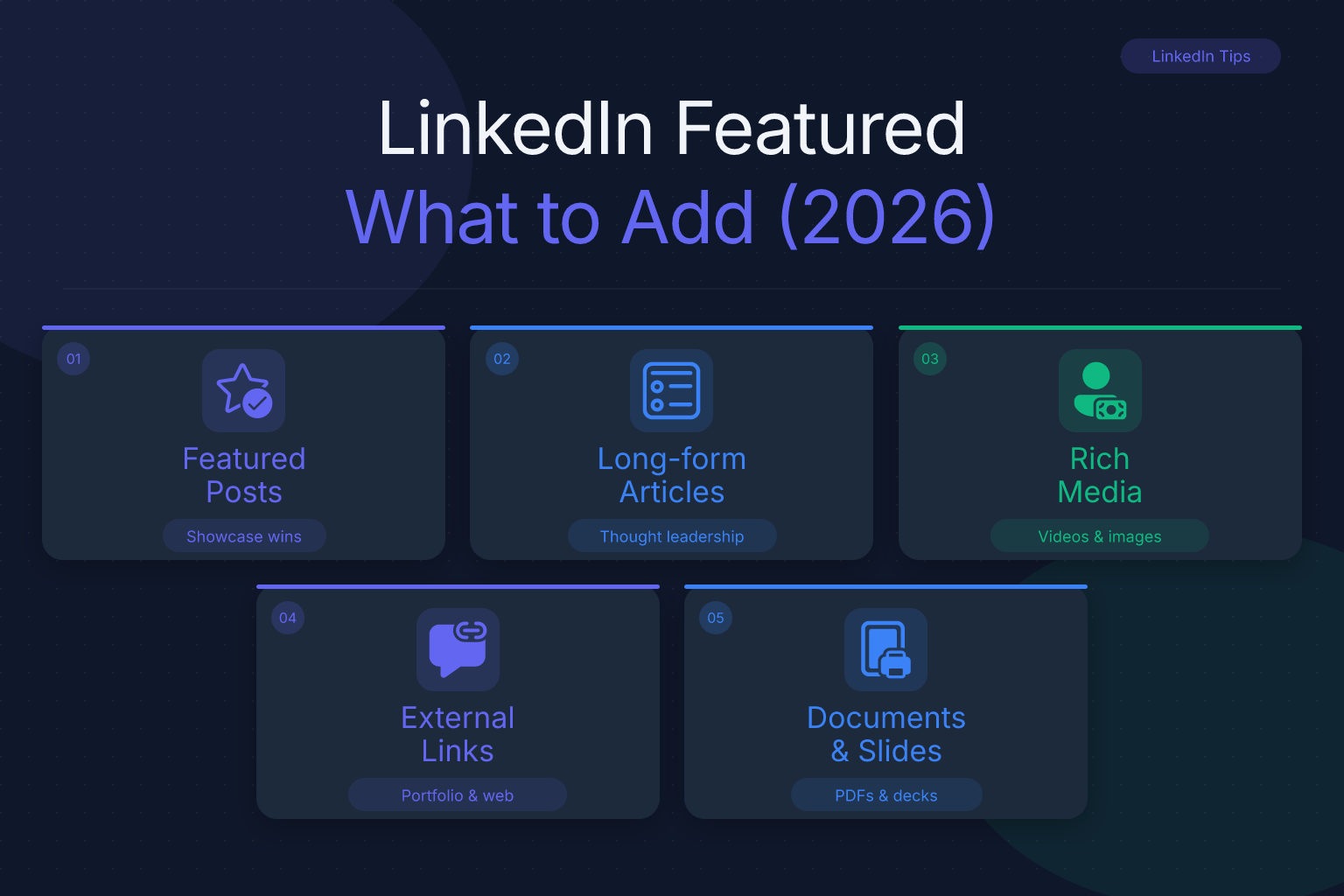
- Your LinkedIn Featured section should include your resume (as a PDF), a portfolio or work sample, and at least one project or case study that demonstrates skills relevant to your target role.
- Recruiters often skim the Featured section before reading your full experience, so treat it as a visual summary of your candidacy.
- You can add up to three items to the Featured section on a free LinkedIn account, so choose the three that best prove you can do the job.
- Adding a short video introduction or a link to a personal website can differentiate you from candidates who leave the section empty.
- Update your Featured section for each job application to match the specific role’s requirements.
| What to Do | Why It Matters | Time |
|---|---|---|
| Add your resume as a PDF | Gives recruiters one-click access to your full qualifications | 5 minutes |
| Pin a portfolio or work sample | Shows proof of skills instead of just claiming them | 10-15 minutes |
| Feature a project or case study | Demonstrates problem-solving and impact | 15-20 minutes |
| Link to articles or thought leadership | Positions you as knowledgeable in your field | 10 minutes |
| Add a video introduction | Humanizes your profile and shows communication skills | 20-30 minutes |
What to Add to Your LinkedIn Featured Section for Job Search
The Featured section is your chance to control the narrative. Instead of letting a recruiter scroll through years of job titles and hope they connect the dots, you can curate three items that directly answer the question: “Can this person do the job?”
Here’s how to add items to your Featured section:
- Go to your LinkedIn profile and click the Add profile section button.
- Under Recommended, select Featured (or click the + icon next to Featured if it’s already visible).
- Choose the type of content you want to add: a post, article, link, or media upload.
- Follow the prompts to upload or paste the URL, add a title and description, and save.
- Drag and drop to reorder items so your strongest asset appears first.
For a deeper dive into optimizing your entire profile, see our guide on LinkedIn profile optimization for job search.
Add Your Resume as a PDF
Your resume is the single most important document in your job search, so it belongs in your Featured section. Recruiters who find your profile through LinkedIn search or a job application often want to see your full resume without asking for it. By pinning it, you remove friction.
How to do it:
- Export your resume as a clean, text-based PDF. Avoid scanned images or heavily formatted files that might not display correctly.
- Use a professional filename like
YourName-Resume-2026.pdfinstead ofresume_final_v3.pdf. - In the Featured section, choose Upload media, select your PDF, and add a title like “Product Manager Resume” and a short description highlighting your top skills.
If you don’t have a resume yet or want to improve yours, use the free ResumeMate AI resume builder to create an ATS-friendly PDF in minutes. Then run it through the resume score checker to make sure it parses correctly before uploading to LinkedIn.
Showcase a Portfolio or Work Samples
For many roles—design, writing, development, marketing, data analysis—a portfolio speaks louder than a list of responsibilities. The Featured section lets you link directly to an online portfolio, a GitHub repository, a Behance profile, or a personal website. But simply dropping a link isn’t enough; you need to frame it so recruiters understand exactly what they’re looking at and why it matters.
What to include:
- A link to your portfolio homepage with a clear title like “UX Design Portfolio – 12 Case Studies.”
- A specific project page that matches the job you’re targeting. For example, if you’re applying for a content marketing role, feature a blog post you wrote that drove traffic.
- A PDF or slide deck of work samples if you don’t have a live site.
How to make it stand out:
- Write a short description that highlights the skills demonstrated. Instead of “My portfolio,” say “Product design portfolio featuring 5 mobile app case studies with user research and wireframes.”
- If you’re linking to a GitHub repo, add a README that explains the project, the tech stack, and the outcome. Recruiters won’t dig through code without context.
- For visual work, consider uploading a single high-quality image or PDF that showcases your best piece, then link to the full portfolio in the description.
Common mistake: Linking to a generic homepage that requires navigation. Recruiters spend seconds on your profile—make the first click count by sending them directly to a relevant project or a curated collection.
Feature a Project or Case Study
A project or case study shows how you think, not just what you did. It’s especially valuable for career changers, recent graduates, or anyone whose job titles don’t fully capture their capabilities. A well-crafted case study can bridge the gap between your past experience and the role you want.
How to create a compelling case study:
- Choose a project with measurable results—revenue increased, time saved, users acquired, errors reduced.
- Write a one-page summary: the problem, your approach, the tools you used, and the outcome.
- Save it as a PDF or create a simple landing page, then upload or link it in Featured.
- Title it with the result, e.g., “Reduced Customer Churn by 18% – Retention Analysis Project.”
What makes a case study effective:
- Specificity: Use numbers and concrete details. “Improved onboarding flow” is weak; “Redesigned onboarding flow, reducing drop-off by 22% in 3 weeks” is strong.
- Relevance: Tailor the case study to the job you’re targeting. If the role requires SQL, feature a project where you used SQL to analyze data.
- Storytelling: Structure it like a mini-narrative: challenge → action → result. This makes it memorable and easy to skim.
This works even if the project was academic, volunteer, or personal. The key is to frame it around the skills the employer needs. For example, a volunteer project where you organized a fundraising event can demonstrate project management, budgeting, and communication—all transferable skills.
Link to Articles, Blog Posts, or Thought Leadership
If you write on LinkedIn, Medium, a company blog, or your own site, pin your best piece in the Featured section. This positions you as someone who understands the industry and can communicate clearly—two traits every hiring manager values. But not all articles are created equal, and choosing the wrong one can backfire.
What to choose:
- An article that demonstrates expertise in your target field, not just a generic opinion piece.
- A post that got strong engagement or sparked discussion, as social proof.
- A how-to guide or analysis that shows depth of knowledge.
How to maximize impact:
- Write a custom title and description for the Featured item. Instead of the article’s original headline, use something like “Data-Driven Marketing: How I Increased Email Open Rates by 40%.”
- If the article is on an external site, consider adding a short summary in the description that highlights the key takeaway and why it matters for the role.
- Don’t have any articles yet? Write one. A 500-word post about a problem you solved at work or a trend you’re watching can be enough. Publish it on LinkedIn and then feature it.
What to avoid:
- Articles that are outdated or irrelevant to your current job search.
- Posts that are purely personal or controversial—keep it professional.
- Content that doesn’t align with the skills listed in your resume or profile.
For inspiration on crafting your professional story, see our LinkedIn About section summary examples for job seekers.
Add a Video Introduction or Pitch
A 30-60 second video is the most personal item you can add to your Featured section. It lets recruiters hear your voice, see your enthusiasm, and get a sense of your communication style before an interview. In a sea of text-based profiles, a video can make you memorable.
What to say in your video:
- Introduce yourself by name and current role or target role.
- State one or two key strengths with a quick example.
- Mention what you’re looking for and why you’re excited about the industry.
- End with a call to action: “Feel free to message me or check out my resume below.”
How to record a high-quality video without professional equipment:
- Use your smartphone in a quiet, well-lit room. Natural light from a window works best.
- Keep the camera at eye level and look directly into the lens, not at the screen.
- Write a short script or bullet points, but don’t read word-for-word—sound natural.
- Keep it under 60 seconds. Attention spans are short, and you want to leave them wanting more.
- Upload the video directly to LinkedIn Featured. You can also host it on YouTube or Vimeo and link to it, but direct upload ensures it plays inline.
When a video might not be the best choice:
- If you’re in a highly technical field where written proof matters more, a case study or portfolio might be stronger.
- If you’re uncomfortable on camera, a poorly executed video can hurt more than help. In that case, skip it and focus on other items.
Include Certifications, Awards, or Media Mentions
If you have a certification that’s directly relevant to the job (e.g., AWS, PMP, Google Analytics), a link to the credential or a PDF of the certificate can be a strong Featured item. Similarly, an award, a conference talk, or a media mention adds third-party validation. These items signal that others have recognized your skills, which builds trust.
Examples:
- A link to your verified certification on Credly or the issuing organization’s site.
- A PDF of an award letter or a screenshot of a press feature.
- A link to a recorded conference presentation or webinar you led.
How to choose the right certification or award:
- Relevance: Only include items that reinforce your target role. A certification in an unrelated field can dilute your message. For example, if you’re applying for a data analyst role, a Google Data Analytics certificate is perfect; a yoga instructor certification is not.
- Recency: Prioritize certifications earned within the last 2-3 years. Older ones may still be valid, but newer ones show you’re keeping your skills current.
- Credibility: Link to the official verification page whenever possible. A screenshot of a certificate is less trustworthy than a live link to Credly or the issuing body.
What to avoid:
- Listing every certification you’ve ever earned. Choose the one or two that matter most for the job.
- Featuring an award that is obscure or irrelevant. A “Best Employee of the Month” from a previous job might not impress a recruiter unless it’s tied to a specific achievement.
- Using a low-quality image of a certificate. If you must upload a PDF, make sure it’s clear and legible.
What to Avoid in Your LinkedIn Featured Section
Just as important as what to add is what to leave out. The Featured section is limited to three items, so every slot must earn its place.
Avoid these mistakes:
- Outdated or irrelevant content. A project from five years ago in a different industry doesn’t help your current search.
- Generic links. A link to your company’s homepage or a random news article tells recruiters nothing about you.
- Low-quality images or scanned documents. Blurry screenshots or unreadable PDFs look unprofessional.
- Too many items. Three is the maximum on a free account, but even if you have Premium, curate ruthlessly. Quality over quantity.
- Anything that contradicts your resume or profile. Consistency matters. If your Featured resume says one thing and your profile says another, recruiters will notice.
For more on keeping your online presence clean during a job search, read our guide on how to clean social media for a job search.
How to Update Your Featured Section for Each Application
Your Featured section shouldn’t be static. When you apply for a specific role, take five minutes to tailor it:
- Review the job description and identify the top three skills or requirements.
- Swap out your Featured items to match. For example, if the role emphasizes data analysis, feature a data project instead of a general portfolio link.
- Update the titles and descriptions of your items to use keywords from the job posting.
- Reorder so the most relevant item appears first.
This small effort signals to recruiters that you’re serious about the role and understand what they need. While you’re at it, use the ResumeMate job board to find openings that match your updated profile, and track every application with the free ResumeMate Chrome extension so you never lose track of a follow-up.
FAQ
Q: How many items can I add to my LinkedIn Featured section?
A: On a free LinkedIn account, you can add up to three items. LinkedIn Premium allows more, but three well-chosen items are usually enough to make a strong impression.
Q: Can I add my resume to LinkedIn Featured?
A: Yes. Upload your resume as a PDF using the “Upload media” option. Make sure it’s a clean, text-based PDF so it displays correctly and is easy for recruiters to download.
Q: What file types does LinkedIn Featured support?
A: You can upload PDFs, images (PNG, JPG), and videos, or add links to external websites, articles, and posts. For documents, PDF is the most reliable format.
Q: Should I add a cover letter to my Featured section?
A: Generally no. A cover letter is tailored to a specific job and becomes outdated quickly. Instead, use the Featured section for evergreen assets like your resume, portfolio, or a project case study.
Q: How do I reorder items in my LinkedIn Featured section?
A: Go to your profile, hover over the Featured section, and click the pencil icon. Then drag and drop the items into your preferred order. The first item gets the most visibility.
Q: Is the Featured section visible to recruiters?
A: Yes. The Featured section is public by default and appears near the top of your profile, below your About section. Anyone viewing your profile, including recruiters, can see it.
Q: Can I add a link to my personal website in Featured?
A: Absolutely. Use the “Add a link” option and paste your website URL. Add a descriptive title like “Personal Portfolio – Jane Doe” so recruiters know what they’re clicking.
Track Every Application While You Job Hunt
Stop losing track of where you’ve applied. The ResumeMate Job Tracker is a free Chrome extension that tracks every application, deadline, and follow-up in one place — right from your browser.