You’ve polished every bullet point, tailored your summary, and double-checked your contact info — but if your resume file exceeds the resume file size limit for email, it may never reach the recruiter. Most email providers cap attachments at 20–25 MB, but many corporate systems and applicant tracking systems (ATS) reject files far smaller than that. A bloated resume can bounce, land in spam, or get silently stripped from your application. The good news? A clean, well-optimized resume rarely needs to exceed 1 MB — and often sits comfortably under 500 KB. This guide breaks down the exact limits, why size matters beyond the inbox, and how to shrink your file without sacrificing readability or ATS compatibility.
Key Takeaways
- Most major email providers (Gmail, Outlook, Yahoo) allow attachments up to 20–25 MB, but many corporate email systems and ATS platforms reject files over 5–10 MB — so aim for under 1 MB, ideally under 500 KB. For example, a one-page text-only PDF resume typically ranges from 50 KB to 200 KB, while a resume with a high-resolution headshot can balloon to 3–5 MB.
- A PDF exported from a text-based resume builder is the safest format for email; it preserves layout, is universally readable, and typically produces smaller files than Word documents with embedded fonts or images. For instance, a resume built in ResumeMate exports as a clean PDF under 200 KB, while the same content in a Word file with a logo might exceed 1 MB.
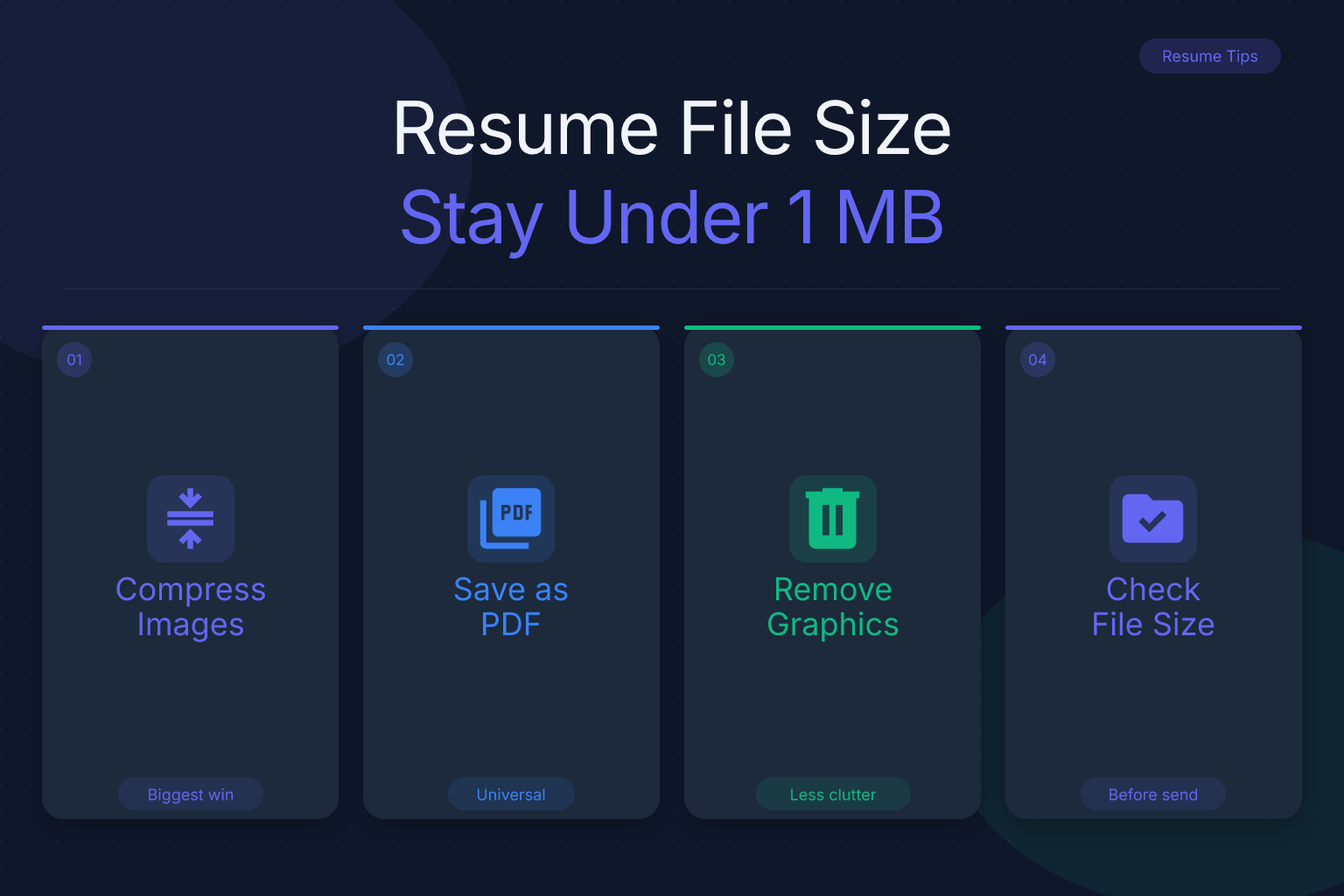
- You can reduce resume file size by compressing images (use TinyPNG or Squoosh to shrink a headshot from 2 MB to under 100 KB), removing unnecessary graphics, using a single-column layout, and exporting with PDF optimization settings — all without losing ATS readability.
- Always check your file size before sending: right-click the file and select Properties (Windows) or Get Info (Mac) to see the exact size in KB or MB. A quick benchmark: a one-page resume with no images should be 50–200 KB; anything over 1 MB signals bloat.
- If your resume is still over 1 MB after optimization, use a free online PDF compressor like Smallpdf or iLovePDF, or rebuild it in a clean, text-first template to strip hidden metadata and bloated elements. For example, compressing a 2 MB PDF with Smallpdf often reduces it to under 500 KB without visible quality loss.
- Concrete example: A resume with a 300 DPI headshot (2.5 MB) can be reduced to 180 KB by compressing the image to 150 DPI and exporting as a text-based PDF from a single-column template.
| What to Do | Why It Matters | Time |
|---|---|---|
| Keep resume under 1 MB (ideally under 500 KB) | Avoids email bounce-backs, ATS rejections, and slow downloads for recruiters | 2 minutes to check |
| Export as a text-based PDF | Preserves formatting, works on all devices, and produces smaller files than Word | 1 minute |
| Compress images and remove graphics | Cuts file size dramatically without affecting text readability | 5–10 minutes |
| Use a single-column layout | Reduces file complexity and improves ATS parsing | 10–15 minutes to reformat |
| Check file size before every send | Prevents embarrassing delivery failures and missed deadlines | 30 seconds |
What Is the Resume File Size Limit for Email?
The resume file size limit for email depends on your email provider and the recipient’s system. Here are the standard attachment caps for the most common free email services:
- Gmail: 25 MB per email (including the message body and all attachments)
- Outlook.com / Hotmail: 20 MB per email
- Yahoo Mail: 25 MB per email
- iCloud Mail: 20 MB per email
- ProtonMail: 25 MB per email
These numbers sound generous — a 25 MB resume would be absurdly large. But the real problem is that many corporate email servers, recruitment portals, and ATS platforms enforce much lower limits, often between 5 MB and 10 MB. Some government and healthcare systems cap attachments at 2 MB. If your resume exceeds the recipient’s internal limit, the email may bounce back, get quarantined, or be silently dropped without any notification to you.
Even when the email goes through, a large attachment creates friction. Recruiters often review resumes on mobile devices or through web-based ATS dashboards where every megabyte adds load time. A 3 MB PDF might take seconds to open on a laptop but feel sluggish on a phone — and a busy hiring manager may move on before it renders.
The practical rule: keep your resume file under 1 MB, and ideally under 500 KB. A well-formatted, text-based PDF resume with no photos or heavy graphics almost always falls in this range. If yours is larger, something is bloating the file — and that’s fixable.
Why Resume File Size Matters Beyond Email Limits
File size isn’t just about avoiding a bounce-back. It affects three other critical stages of your application:
1. ATS Parsing Accuracy
Most companies use an applicant tracking system to scan and parse resumes before a human ever sees them. ATS software extracts text from your file and maps it to fields like work history, skills, and education. Large files often contain complex elements — embedded images, multiple columns, text boxes, or unusual fonts — that confuse the parser. A lean, single-column PDF with standard fonts parses cleanly and gets your information into the right fields. For more on layout and ATS safety, see our guide on resume margins and standard size for ATS readability.
2. Spam Filter Triggers
Email providers and corporate security systems use attachment size as one signal for spam detection. A resume over 2–3 MB is more likely to be flagged, especially if sent from a free email address to a corporate domain. Keeping your file small reduces the chance your application ends up in the junk folder.
3. Recruiter Experience
Recruiters open dozens of resumes per day. A 5 MB PDF takes longer to download, longer to render, and may crash a mobile email client. A 300 KB PDF opens instantly on any device. Small files signal professionalism and respect for the reader’s time — a subtle but real advantage.
How to Check and Reduce Your Resume File Size
Check Your File Size
Before you hit send, know exactly how large your file is. Here’s how to check on any device:
On Windows:
- Open File Explorer and navigate to your resume file.
- Right-click the file and select Properties.
- Look for the Size field — it shows both bytes and a rounded KB/MB value.
On Mac:
- Open Finder and locate your resume.
- Right-click (or Control-click) the file and select Get Info.
- The file size appears next to Size in the Info window.
On Google Drive or cloud storage:
- Hover over the file or open its details panel; most cloud services display file size in the file list or info pane.
Quick benchmark: A one-page, text-only PDF resume typically ranges from 50 KB to 200 KB. A two-page resume with a small headshot or simple graphics might reach 300–500 KB. Anything over 1 MB deserves a closer look.
Reduce File Size Without Losing Quality
If your resume is over 1 MB, here are the most effective ways to shrink it — ranked from highest impact to lowest.
1. Compress or Remove Images
Photos, logos, and decorative graphics are the #1 cause of bloated resume files. A single high-resolution headshot can add 2–5 MB. If you include a photo (common in some industries and countries), compress it to 150–300 DPI and crop it tightly. Better yet, remove the photo entirely — most U.S. employers prefer no photo to avoid bias concerns. If you have a logo or icon, replace it with plain text or a simple vector shape.
How to compress an image:
- Use free tools like TinyPNG, Squoosh, or your operating system’s built-in image editor.
- Resize the image to the exact dimensions it appears on the page (e.g., 200×200 pixels for a headshot).
- Save as JPEG (for photos) or PNG (for simple graphics) at medium quality.
2. Export as a Text-Based PDF (Not a Scanned Image)
If you created your resume by scanning a paper copy or saving a Word document as an image, the file will be huge and unreadable by ATS. Always generate a text-based PDF directly from your resume builder or word processor. Text-based PDFs store characters as vector data, not pixels, so they stay tiny and parse perfectly.
In Microsoft Word or Google Docs:
- Use File → Save As → PDF (not “Print to PDF” if it rasterizes text).
- In Word, choose Optimize for: Standard (publishing online and printing) — this produces a smaller file than the “Minimum size” option in some versions.
In ResumeMate:
- The free AI resume builder exports clean, text-based PDFs by default. No images, no embedded fonts, no bloat — just a crisp, ATS-safe file that typically lands under 200 KB.
3. Use a Single-Column Layout
Multi-column resumes with sidebars, text boxes, and tables force the PDF to store complex positioning data, which increases file size and confuses ATS parsers. A single-column layout is simpler, smaller, and more reliable. Most modern ATS systems can handle two columns, but single-column remains the safest choice for both file size and parsing accuracy. If you’re using a template with multiple columns, consider switching to a clean single-column design.
4. Remove Embedded Fonts and Unnecessary Metadata
Some PDF exporters embed entire font files, which can add hundreds of kilobytes. Use standard fonts like Arial, Calibri, Helvetica, or Times New Roman — these are already installed on most systems and don’t need embedding. Also strip document metadata (author name, editing history, comments) using a PDF optimizer or by exporting from a clean source file.
5. Limit Pages and White Space
A two-page resume is fine for experienced professionals, but every extra page adds size. Trim redundant bullet points, tighten margins (0.5–1 inch is standard), and remove empty sections. A focused one-page resume for early-career roles or a tight two-pager for senior roles keeps the file lean and the content sharp.
Best Resume Format and Step-by-Step Email Guide
PDF vs DOCX
When emailing your resume, PDF is the default choice — and for good reason. A PDF preserves your formatting exactly as you designed it, regardless of the recipient’s device, operating system, or software. A Word document (.docx) can shift fonts, break lines, or display differently depending on the version of Word or the viewer used. PDFs also tend to be smaller than Word files with the same content, especially when exported with optimization settings.
When to use DOCX instead:
- The job posting explicitly requests a Word document.
- The application portal only accepts .doc or .docx files.
- A recruiter asks you to send an editable version for revisions.
In those rare cases, save your resume as a .docx and check the file size — Word files with embedded fonts or track changes can balloon to several MB. Use File → Inspect Document in Word to remove hidden metadata and personal information before sending.
For more on choosing the right email client and attachment practices, read our comparison of Gmail vs Outlook for resume email.
Step-by-Step Checklist
Follow this checklist every time you send a resume by email:
- Create or update your resume in a clean, text-first template. Use a free resume builder to ensure ATS-safe formatting and a small file size.
- Export as PDF using the “Save As PDF” or “Export PDF” option — never “Print to PDF” if it rasterizes text.
- Check the file size (right-click → Properties or Get Info). If it’s over 1 MB, compress images or remove graphics.
- Name the file professionally — e.g.,
John-Doe-Resume.pdf— notresume_final_v2.pdf. See our guide on how to name your resume file for ATS and recruiters. - Attach the PDF to a concise, professional email. Include a brief message, your name, the position, and a note that your resume is attached.
- Send a test email to yourself first. Open the attachment on both desktop and mobile to confirm it renders correctly and opens quickly.
- Follow up if you don’t hear back within a week — but never resend the same large file without checking size first.
Common Mistakes and Last-Resort Fixes
Mistakes That Inflate File Size
Avoid these pitfalls that quietly push your resume over the limit:
- Using a scanned image of your resume — always generate a digital text file, never scan a paper copy.
- Including a high-resolution headshot — if you must include a photo, compress it to under 100 KB.
- Adding decorative backgrounds, watermarks, or complex graphics — these add megabytes and hurt ATS parsing.
- Embedding custom fonts — stick to standard system fonts.
- Saving as a PowerPoint or image file — always use PDF or DOCX.
- Leaving tracked changes or comments in a Word file — clean the document before exporting.
- Using a multi-column template with tables and text boxes — switch to single-column for a smaller, safer file.
If Your Resume Is Still Too Large
If you’ve compressed images, removed graphics, and switched to a single-column PDF but your file is still over 1 MB, try these last-resort fixes:
- Use a free online PDF compressor — tools like Smallpdf, iLovePDF, or Adobe’s online compressor can reduce file size by 50–80% without visible quality loss. Upload your PDF, compress, and download the optimized version.
- Rebuild the resume from scratch in a plain text editor or a minimal template. Copy the text content, paste it into a new document, and format with basic headings and bullet points. This strips all hidden metadata and bloated elements.
- Reduce the page count — cut less relevant experience, merge bullet points, or tighten margins. A one-page resume is almost always under 300 KB.
- Check for hidden layers or annotations — some PDF editors add invisible layers that inflate size. Use a PDF optimizer to flatten the file.
- Split the resume and cover letter — if you’re sending both in one PDF, separate them into two attachments. Each file stays small and easier to manage.
Remember: a 200 KB resume and a 2 MB resume can contain identical text. The difference is almost always images, fonts, or layout complexity — all of which you can control.
FAQ
Q: What is the maximum file size for email attachments?
A: Most free email providers cap attachments at 20–25 MB per email (Gmail: 25 MB, Outlook: 20 MB, Yahoo: 25 MB). However, many corporate email systems and ATS platforms enforce lower limits of 5–10 MB, so keep your resume under 1 MB to be safe.
Q: How do I reduce my resume file size?
A: Compress or remove images, export as a text-based PDF (not a scanned image), use a single-column layout, stick to standard fonts, and remove unnecessary metadata. If the file is still large, use a free online PDF compressor or rebuild the resume in a clean template.
Q: Is PDF or Word better for emailing a resume?
A: PDF is the default choice because it preserves formatting on any device and produces smaller files. Use Word (.docx) only when the job posting or recruiter explicitly requests it. Always check the file size of either format before sending.
Q: Can I email a resume over 25 MB?
A: No — Gmail and most providers will reject attachments over their limit. Even if your provider allows it, the recipient’s system may not. If your resume is over 25 MB, something is seriously wrong (likely a high-res image or scanned file). Compress it to under 1 MB before sending.
Q: What is a good resume file size?
A: Aim for under 1 MB, and ideally under 500 KB. A one-page, text-only PDF resume typically ranges from 50 KB to 200 KB. Anything over 1 MB should be optimized.
Q: How do I check my resume file size on Mac or Windows?
A: On Windows, right-click the file and select Properties; the size appears in the General tab. On Mac, right-click and select Get Info; the size is listed next to “Size.” You can also check in Google Drive or any cloud storage by viewing file details.
Q: Why does my resume file size matter for ATS?
A: Large files often contain complex elements (images, tables, multiple columns) that confuse ATS parsers, causing your information to be misread or dropped. A small, text-based PDF with a single-column layout parses cleanly and improves your chances of getting past the automated screen.
Track Every Application While You Job Hunt
Stop losing track of where you’ve applied. The ResumeMate Job Tracker is a free Chrome extension that tracks every application, deadline, and follow-up in one place — right from your browser.