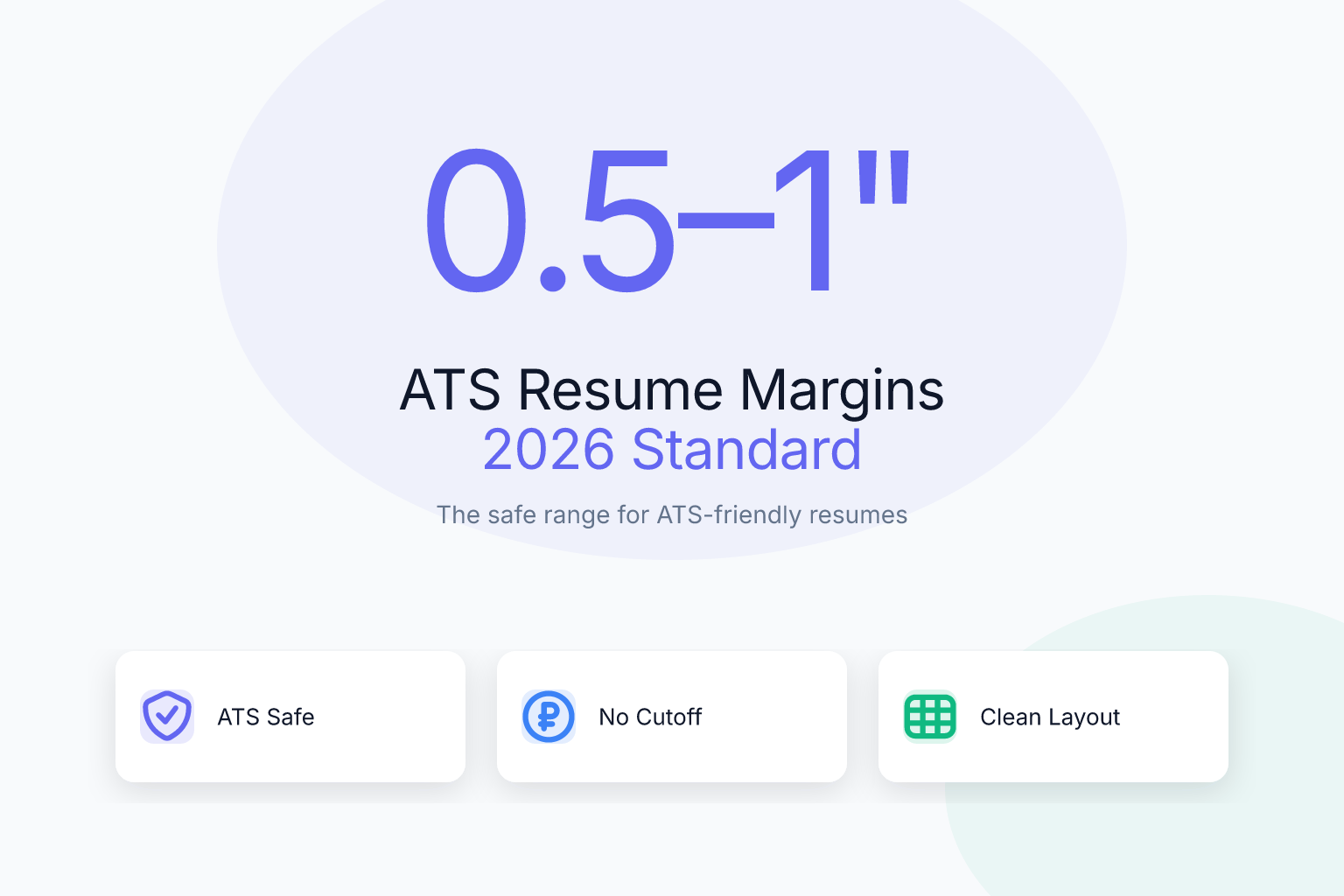
ATS Resume Margins: 2026 Standard Size (0.5–1 Inch)
Resume margins standard size for ATS and readability is a detail most job seekers overlook — until their resume gets rejected by an applicant tracking system or looks cramped on a recruiter’s screen. Margins control how much white space surrounds your content, how much text fits on a page, and how cleanly an ATS extracts your information. Get them wrong, and your carefully written resume can end up cut off, misread, or ignored. Get them right, and you create a document that parses perfectly and reads effortlessly.
In this guide, you’ll learn the exact margin sizes that work for both ATS software and human eyes, how to set them in the tools you already use, and the mistakes that quietly sabotage your application.
Key Takeaways
- The standard resume margin is 0.5 to 1 inch on all sides; 0.5 inches is the minimum safe size for ATS parsing, while 1 inch is the traditional, most readable default.
- Margins smaller than 0.5 inches risk text being cut off when an ATS converts your resume to plain text, and they make the page look cramped to recruiters.
- ATS systems read text left-to-right and top-to-bottom; consistent margins on all four sides help them identify sections and avoid merging or dropping content.
- For human readability, keep at least 0.5 inch margins and pair them with a clean single-column layout and a readable font size (10.5–12 pt).
- You can adjust margins safely in ResumeMate’s free resume builder, which exports ATS-friendly PDFs with preset margins optimized for parsing.
Summary Table
| What to Do | Why It Matters | Time |
|---|---|---|
| Set margins to 0.5–1 inch on all sides | Ensures ATS parses text correctly and recruiters can read comfortably | 2 minutes |
| Avoid margins below 0.5 inches | Prevents text cutoff and a cramped, unprofessional appearance | 1 minute |
| Use consistent margins on all four sides | Helps ATS identify sections and improves visual balance | 1 minute |
| Check your resume’s ATS score after adjusting margins | Confirms formatting changes didn’t break parsing | 5 minutes |
What Are the Standard Resume Margins for ATS and Readability?
The standard resume margin is 0.5 to 1 inch on all sides. One inch is the default in Microsoft Word and Google Docs, and it’s what most recruiters expect to see. Half an inch is the minimum safe margin for ATS parsing — anything smaller risks text being clipped or merged when the system extracts your content.
Here’s the breakdown:
- 1 inch (2.54 cm): The traditional, most readable choice. Gives your resume a balanced, airy look. Best when you have less content or want to emphasize white space.
- 0.75 inch (1.9 cm): A good middle ground. Slightly more space for text without looking tight.
- 0.5 inch (1.27 cm): The minimum safe margin. Maximizes space for one-page resumes, but the page will look denser. Still parses fine in modern ATS.
- Below 0.5 inch: Not recommended. Text can get cut off when printed or when an ATS converts the file to plain text. It also makes your resume look like a wall of text.
For most job seekers, 0.5 to 0.75 inch margins on all sides strike the best balance between fitting content and maintaining readability. If you’re early in your career and have less to say, 1 inch margins look more polished. If you’re a senior professional trying to keep everything on one page, 0.5 inch margins are your friend — but don’t go lower.
Why Resume Margins Matter for ATS Parsing
Applicant tracking systems don’t “see” your resume the way a human does. They extract text from the file — usually a PDF or DOCX — and parse it into structured fields like name, contact info, work history, and skills. Margins affect this process in two ways.
First, text that sits too close to the page edge can be clipped or misread. When an ATS converts your resume to plain text, it uses the page’s coordinate system. If your name or phone number is in a header with zero margin, the system might cut off the last digit or merge it with the next line. A 0.5 inch margin gives the parser a clear buffer zone.
Second, consistent margins help the ATS identify sections. Most ATS algorithms look for visual breaks — white space, line spacing, and indentation — to determine where one section ends and another begins. If your left margin is 0.3 inches and your right margin is 1 inch, the text block shifts unpredictably, and the parser may mislabel your education as part of your work experience.
Modern ATS platforms like Workday, Greenhouse, and Lever parse clean, text-based PDFs reliably. The problem isn’t the PDF format itself — it’s scanned or image-based PDFs, tables, and graphics that break parsing. For a deeper dive on file formats, read our guide on PDF vs. DOCX for resumes: what recruiters and ATS really prefer. Margins are a separate but related issue: even a perfect PDF can fail if the text is crammed against the edge.
How Margins Affect Human Readability and First Impressions
Recruiters spend only a few seconds on an initial resume scan. Margins create the white space that makes that scan easy. A resume with 1 inch margins and a clean font looks organized and professional. A resume with 0.3 inch margins and 10-point text looks like a dense block of information — and most recruiters will skip it.
White space isn’t wasted space. It guides the eye, separates sections, and signals that you know how to present information clearly. When margins are too narrow, your resume feels overwhelming, even if the content is strong. When margins are too wide (over 1 inch), you waste valuable real estate and may force your resume onto a second page unnecessarily.
Pair your margins with a readable font. Our tests on the best resume fonts for ATS and readability found that fonts like Calibri, Arial, and Georgia at 10.5–12 points perform best. A 0.5 inch margin with an 11-point font is perfectly readable; a 0.5 inch margin with a 9-point font is not.
The Best Margin Settings for Different Resume Lengths
Your ideal margin depends on how much content you have and how many pages you’re targeting.
One-page resume (most common): Use 0.5 to 0.75 inch margins. This gives you enough room to fit a summary, 3–4 work experiences, skills, and education without cramming. If you have less content, 1 inch margins look more balanced.
Two-page resume (senior or technical roles): Use 0.75 to 1 inch margins. You have more space, so you can afford generous white space. But if you’re trying to keep it to two pages exactly, 0.5 inch margins are still safe.
Very little content (entry-level or career changer): Use 1 inch margins. Wide margins make a sparse resume look intentional rather than empty. You can also increase line spacing slightly to fill the page.
Lots of content, one page target: Use 0.5 inch margins on all sides, but don’t go below. If you still can’t fit everything, cut content rather than shrink margins further. A cramped resume hurts more than a missing bullet point.
ResumeMate’s free resume builder uses preset margins optimized for ATS and readability. You can adjust them in the editor, but the defaults are already safe for most situations.
How to Set Resume Margins in Word, Google Docs, and ResumeMate
Setting margins takes less than a minute in any tool.
Microsoft Word:
- Open your resume document.
- Click the Layout tab (or Page Layout in older versions).
- Click Margins and choose Normal (1 inch) or Narrow (0.5 inch).
- For custom sizes, click Custom Margins and enter values for top, bottom, left, and right.
- Click OK and check that your content still fits on the page.
Google Docs:
- Open your resume.
- Click File > Page setup.
- In the Margins section, enter your desired values (e.g., 0.5 for all sides).
- Click OK.
ResumeMate (free AI resume builder):
- Go to the ResumeMate resume builder.
- Choose a template — most are single-column, which is the safest for ATS.
- The template comes with preset margins (typically 0.5–0.75 inch).
- If you need to adjust, use the editor’s margin controls.
- Export as a clean, text-based PDF. ResumeMate handles the formatting so you don’t have to worry about ATS clipping.
Common Margin Mistakes That Hurt Your Resume
Even small margin errors can cause big problems. Here are the most common ones and how to fix them.
1. Using margins below 0.5 inches. You’re trying to fit more text, but the result is a cramped page that ATS may clip. Fix: Set all margins to at least 0.5 inches. If you need more space, cut a bullet point or reduce font size from 12 to 11 — don’t shrink margins further.
2. Inconsistent margins on different sides. For example, 0.3 inch left margin and 1 inch right margin. This shifts your text block and confuses ATS section detection. Fix: Use the same margin on all four sides.
3. Zero margins in headers or footers. Some templates put your name or contact info in a header with no margin. When the ATS extracts text, that info can be cut off. Fix: Keep headers and footers within the same 0.5–1 inch margin as the body, or better, put contact info in the main body.
4. Not checking margins after converting to PDF. You set margins in Word, but the PDF export shifts them slightly. Fix: After exporting, open the PDF and zoom out to 50%. Check that no text touches the page edge. Then copy all text from the PDF and paste it into a plain text editor — if anything is missing or garbled, your margins (or another formatting element) are the culprit.
5. Using different margins for different sections. Some people indent the entire work experience section to create a visual hierarchy. This can confuse ATS parsers that expect consistent left alignment. Fix: Keep all body text aligned to the same left margin. Use bold or spacing for hierarchy instead.
How to Check If Your Margins Are ATS-Friendly
The fastest way is to run your resume through a free ATS score checker. ResumeMate’s resume score checker analyzes your uploaded resume and flags formatting issues, including margins that are too small or inconsistent. It gives you a section-by-section breakdown so you can fix problems before you apply.
You can also do a manual check:
- Open your resume as a PDF.
- Zoom out to 50% or 25%. Look at the overall page. Text should sit comfortably inside the page edges with a clear white border on all sides.
- Select all text and copy it. Paste into Notepad (Windows) or TextEdit (Mac) in plain text mode.
- Check for missing or merged text. If your name, phone number, or any section header is cut off or combined with another line, your margins are too tight or another formatting element is breaking the parse.
- Print a test page. If your printer cuts off any text, an ATS might too.
If you find issues, adjust your margins to 0.5–1 inch and re-check. It’s a five-minute fix that can save your application from the rejection pile.
Resume Margins vs. Other Formatting: What Matters More?
Margins are important, but they’re not the most important formatting decision. Here’s the priority order for a resume that passes ATS and impresses recruiters:
- Relevant keywords and content. No amount of perfect formatting saves a resume that doesn’t match the job description. Use our ATS resume keywords for 50+ jobs to find the right terms.
- Clean single-column layout. Multi-column resumes can parse fine in modern ATS, but single-column is the safest choice. Most ResumeMate templates are single-column.
- Readable font and size. Stick to standard fonts at 10.5–12 points.
- Proper margins. 0.5–1 inch on all sides.
- File format. Export as a text-based PDF, not a scanned image or DOCX unless specifically requested.
If your margins are slightly off but your content is strong, you’ll still get interviews. But if your margins cause ATS parsing errors, your content never gets seen. So treat margins as a non-negotiable baseline: set them correctly once, then focus your energy on tailoring your resume to each job.
ResumeMate’s free resume builder handles margins, fonts, and layout automatically, so you can focus on writing content that gets you hired. And when you’re ready to apply, the ResumeMate Job Tracker Chrome extension keeps every application, deadline, and follow-up organized.
FAQ
Q: What is the standard margin size for a resume?
A: The standard resume margin is 0.5 to 1 inch on all sides. One inch is the traditional default, while 0.5 inch is the minimum safe size for ATS parsing. Most job seekers should use 0.5 to 0.75 inch margins to balance space and readability.
Q: Can I use 0.5 inch margins on a resume?
A: Yes, 0.5 inch margins are safe for both ATS and human readers. They’re the minimum recommended size — anything smaller risks text being cut off during ATS parsing or looking cramped to recruiters. Use 0.5 inch margins when you need to fit more content on one page.
Q: Do ATS systems care about resume margins?
A: ATS systems don’t “care” about margins in the way a human does, but margins affect how text is extracted. If margins are too small (below 0.5 inch), text can be clipped or merged, causing the ATS to miss your name, contact info, or section headers. Consistent margins also help the ATS identify where sections begin and end.
Q: What happens if my resume margins are too small?
A: Margins below 0.5 inches can cause three problems: text gets cut off when the ATS converts your resume to plain text, the page looks cramped and unprofessional to recruiters, and inconsistent margins can confuse the ATS’s section detection. Always keep margins at 0.5 inches or larger.
Q: Should I use different margins for a one-page vs two-page resume?
A: For a one-page resume, use 0.5 to 0.75 inch margins to fit content without cramming. For a two-page resume, you can use 0.75 to 1 inch margins for more white space. But 0.5 inch margins are safe for both lengths if you need the extra room.
Q: How do I change margins in Google Docs for a resume?
A: In Google Docs, click File > Page setup, then enter your desired margin values (e.g., 0.5 for top, bottom, left, and right). Click OK to apply. Check that your content still fits on the page after the change.
Q: Are 1 inch margins too big for a resume?
A: One inch margins are not too big — they’re the traditional default and look clean and professional. They work best when you have less content or want to emphasize white space. If you’re struggling to fit everything on one page, you can reduce to 0.5–0.75 inches, but 1 inch is never a mistake.
Track Every Application While You Job Hunt
Stop losing track of where you’ve applied. The ResumeMate Job Tracker is a free Chrome extension that tracks every application, deadline, and follow-up in one place — right from your browser.