Create a Resume from LinkedIn in 2026: Free Auto-Import & Cleanup
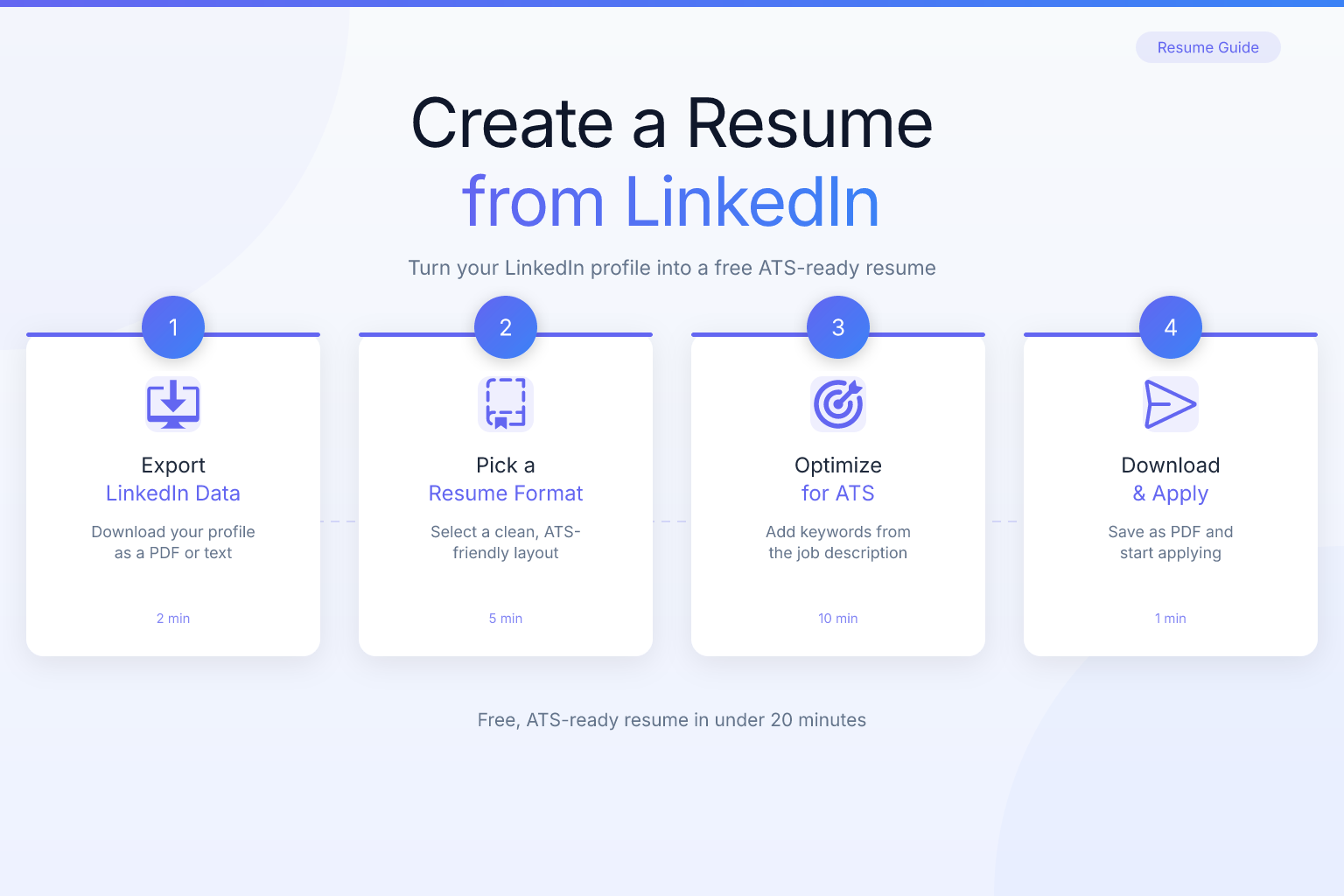
Downloading your LinkedIn resume is a convenient way to create a professional job application document quickly. In 2025, exporting your LinkedIn profile into a clean, ATS-friendly resume format can save time but requires thoughtful cleanup and personalization to maximize impact.
Your LinkedIn profile is essentially a living resume you update continuously — yet most job seekers never think to use it as a head start when building their next job application. The good news: with the right export method and a focused cleanup process, you can go from profile to polished resume in under an hour.
| Quick Guide for LinkedIn Resume Download |
|---|
| Use LinkedIn’s built-in “Save as PDF” resume option |
| Clean up job descriptions and remove jargon |
| Tailor the resume to job applications |
| Verify formatting and ATS compatibility |
When to Use This (Timing & Context)
- When you need a fast, basic resume draft
- For roles matching your LinkedIn content closely
- As a starting point to personalize for tailored applications
- When returning to the job market after a gap and your profile is already up to date
- When applying to multiple roles and you need a consistent base document
Using the LinkedIn export as a baseline is recommended before detailed customization. Think of it as scaffolding: the structure is there, but you still need to fit it precisely to the job you’re targeting. If your LinkedIn profile is outdated or incomplete, however, you’ll spend more time filling gaps than you would building a resume from scratch — so update your profile first.
When NOT to rely on a LinkedIn export:
- Your profile hasn’t been updated in over a year and doesn’t reflect your current skills or achievements.
- You’re pivoting to a completely different industry or role where your LinkedIn narrative doesn’t align with the target job.
- You need a highly tailored, keyword-optimized resume for a specific ATS and the LinkedIn content is too generic.
In these cases, start fresh with a resume builder and use LinkedIn only as a reference for dates and job titles. For a systematic approach to organizing your job search materials, see our guide on organizing your job search step by step.
How LinkedIn Profile Exports Actually Work
LinkedIn offers two primary ways to get a resume from your profile:
Option 1: Save to PDF (Built-In) Navigate to your LinkedIn profile, click the “More” button below your name, and select “Save to PDF.” This creates a PDF that mirrors your full LinkedIn profile layout — including your photo, summary, experience, education, skills, and recommendations. The result is readable but rarely ATS-optimized out of the box. It often includes your profile photo, connection count, and LinkedIn branding, all of which should be removed before submitting to an employer.
Option 2: Resume Builder (LinkedIn Labs) LinkedIn’s Resume Builder lets you select specific sections from your profile, reorder them, and preview a formatted resume before downloading. You can access it from your profile page under “More > Build a resume.” This gives you more control over what gets included, but the templates are still fairly basic and may not be ATS-friendly. The output is often a multi-column layout with graphics that can confuse older applicant tracking systems.
Option 3: Third-Party Auto-Import Tools Tools like ResumeMate, Rezi, and Kickresume can pull your LinkedIn data through a URL import or browser extension and convert it into a cleaner, more ATS-compatible format. These tools often apply formatting rules automatically and let you edit within their own resume builders, giving you both speed and control. For example, ResumeMate’s free resume builder can import your LinkedIn profile in seconds, strip out social-media fluff, and generate a single-column, ATS-safe draft that you can then tailor to each job.
Key limitations of LinkedIn’s native exports:
- They include social elements (photo, connections, endorsements) that don’t belong on a resume.
- The formatting is designed for screen reading, not ATS parsing — tables, columns, and graphics can cause parsing errors.
- The content is written in a narrative, first-person style that needs to be converted to concise, achievement-focused bullets.
- They don’t tailor keywords to a specific job description.
In all cases, the export is a starting point — not a finished product. For guidance on choosing an ATS-safe template, read our article on choosing the best resume builder template.
Best-Practice Rules
- Edit thoroughly: LinkedIn exports often include long, narrative descriptions—condense to bullet points emphasizing achievements. Use strong action verbs to start each bullet. For example, replace “responsible for” with “led,” “managed,” or “delivered.”
- Remove irrelevant info: Delete outdated roles or non-job-related content. If you worked a part-time job 10 years ago that has no bearing on your current career, cut it. Keep only what supports your target role.
- Standardize formatting: Use clean fonts, consistent dates, and professional layout. A single-column template is the safest choice for ATS parsing. Avoid tables, text boxes, and images — they can break parsing.
- Add tailored keywords: Adapt skills and experience sections for target roles. Mirror the exact language from the job description where it genuinely fits your experience. This helps both ATS keyword matching and human recruiters.
- Proofread: Check spelling, grammar, and readability. A single typo can signal carelessness. Read the resume aloud or use a tool like Grammarly.
- Shorten your summary: LinkedIn summaries are written for an audience scrolling a social platform. Resume summaries need to be 3-4 lines max, front-loaded with your value proposition. Cut adjectives and focus on measurable impact.
- Convert paragraphs to bullets: Any multi-sentence job description on LinkedIn should become 3-5 tight, achievement-focused bullet points on your resume. Each bullet should start with an action verb and include a number, percentage, or other quantifiable result when possible.
Following these rules ensures your exported resume doesn’t look like a copy-paste job — and that it passes both human and ATS screening. For a deeper dive into ATS formatting pitfalls, see our article on ATS formatting mistakes that kill your resume.
Step-by-Step Cleanup Walkthrough
Here is a practical sequence to follow after you export your LinkedIn data:
Step 1: Strip the Header LinkedIn exports include your profile photo, connection count, and follower stats. Remove all of that. Your resume header should contain only your name, phone number, email, LinkedIn URL, and city/state (or “Open to remote”). If you used “Save to PDF,” also delete any LinkedIn footer text like “Downloaded from LinkedIn” — you want zero platform branding on your resume.
Step 2: Rewrite the Summary Your LinkedIn “About” section is often written in first-person (“I am a results-driven…”). Convert it to third-person omission style (“Results-driven marketing manager with 8 years…”) and cut it down to 3-4 lines. Make sure it reflects the job you’re applying for, not a generic overview. Include your top 2-3 hard skills and a key achievement.
Step 3: Condense Job Descriptions LinkedIn lets you write long, story-style descriptions of each role. On a resume, each position should have 3-5 bullet points that start with a strong action verb and include a measurable outcome wherever possible.
Before (LinkedIn style): “I was responsible for managing the company’s social media presence across multiple platforms including Instagram, Twitter, and LinkedIn. I worked with the creative team to develop content and tracked engagement to report to management.”
After (Resume style):
- Managed social media strategy across Instagram, Twitter, and LinkedIn, growing combined following by 40% in 12 months.
- Collaborated with creative team to produce 20+ monthly content pieces; reported engagement metrics to senior leadership.
Step 4: Audit Your Skills Section LinkedIn skills sections often contain dozens of endorsements, many of which are vague or outdated. Trim your resume skills section to 10-15 items that are directly relevant to the role you’re targeting. Group them by category (e.g., Technical Skills, Tools, Languages) for clarity. Prioritize hard skills over soft skills — ATS systems often filter on specific technical keywords.
Step 5: Remove Sections That Don’t Belong on a Resume LinkedIn exports may include: volunteer experience (keep if relevant), publications (keep if relevant), interests (usually remove), recommendations (don’t paste text — paraphrase key praise in your summary if at all), and courses (keep certifications, skip informal ones). Also remove any “People Also Viewed” or “Similar Profiles” sections that sometimes appear in PDF exports.
Step 6: Check ATS Compatibility Before submitting, run your cleaned-up resume through a free ATS resume checker or paste the text into a plain text editor. If key sections disappear or look garbled, your formatting needs more work. Use a single-column layout with standard section headers like “Work Experience,” “Education,” and “Skills.”
Step 7: Final Review Against the Job Description Open the job posting and compare your resume line by line. Does your summary mention the role’s top requirement? Do your bullets include the exact keywords from the “Requirements” section? If not, adjust. This final tailoring step is what separates a generic LinkedIn export from a targeted application.
Templates/Examples for Common Scenarios
Basic LinkedIn Resume Download Example
- Exported using LinkedIn’s “Save to PDF” feature
- Reorganized header with custom contact info
- Condensed job descriptions to 3-5 bullet points
- Added a professional summary at the top
- Removed “Interests” and any redundant sections
Example: Before vs. After Cleanup
Before (direct LinkedIn export):
John Doe | 500+ connections | Software Engineer at TechCorp
About: I am a passionate software engineer who loves solving complex problems with creative solutions. I have worked at several startups and enjoy collaborating with cross-functional teams.
Experience: TechCorp — Software Engineer I worked on building features for our main product. I also helped with code reviews and mentored junior engineers. We used React, Node.js, and AWS.
After (cleaned-up resume):
John Doe | john@email.com | (555) 123-4567 | linkedin.com/in/johndoe | Austin, TX
Summary: Software Engineer with 6 years of experience building scalable web applications using React, Node.js, and AWS. Proven track record of shipping product features on schedule and mentoring junior developers.
Software Engineer | TechCorp | Jan 2021 – Present
- Developed 15+ production features for flagship SaaS product, reducing average page load time by 22%.
- Conducted weekly code reviews for a team of 4 engineers, maintaining a defect rate below 2%.
- Mentored 3 junior engineers, two of whom were promoted within 18 months.
The difference is stark. The “before” version reads like a social media bio. The “after” version reads like a professional record of impact.
Personalization Tips
- Customize your summary to reflect the specific job application. Mention the company name and the role you’re targeting if possible.
- Highlight measurable achievements over duties. Numbers catch a recruiter’s eye faster than adjectives.
- Include relevant certifications or training not listed on LinkedIn. If you completed a course or earned a certification outside LinkedIn, add it to your resume.
- Remove or rephrase phrases that appear too generic or verbose. Words like “passionate,” “team player,” and “hardworking” are overused — replace them with concrete examples.
- Mirror the exact language from the job description where it genuinely fits your experience — this helps with ATS keyword matching.
- If you’re applying across different industries or roles, create separate versions of the resume rather than one-size-fits-all. A single resume rarely works for both a marketing role and a sales role.
- After tailoring, run your resume through a free score checker to see how well it matches the job description and where you can improve keyword density.
- Use the ResumeMate job board to find openings that match your newly tailored resume, then adjust further based on each posting.
Do’s & Don’ts & Common Mistakes
| Do’s | Don’ts |
|---|---|
| Use LinkedIn export as a draft | Submit LinkedIn export without edits |
| Tailor for each job application | Include all LinkedIn content as-is |
| Use concise, quantifiable bullet points | Forget to proofread for errors |
| Check ATS compatibility | Use graphics or complex formatting |
| Keep your resume to 1-2 pages max | Carry over every single LinkedIn section |
| Use a clean, single-column layout | Use the profile photo from LinkedIn export |
| Include a professional email address | Use a casual or outdated email (e.g., partydude@email.com) |
| List your LinkedIn URL in the header | Include your full street address |
| Quantify achievements with numbers | Write vague statements like “helped with projects” |
| Save as PDF for submission | Submit a Word doc unless specifically requested |
How AI Tools Can Accelerate the Cleanup
Several AI-powered resume tools now make the LinkedIn-to-resume conversion faster and smarter:
- Auto-import: Tools parse your LinkedIn URL or exported PDF and auto-populate resume sections. ResumeMate’s builder lets you paste your public LinkedIn URL and instantly generates a formatted draft — no manual copy-pasting required.
- AI rewriting: They rephrase vague LinkedIn descriptions into strong, action-oriented resume bullets. For example, “I helped with marketing” becomes “Executed email campaigns that increased open rates by 18%.”
- Keyword matching: AI compares your imported content against a job description and flags missing keywords. This ensures your resume passes ATS filters.
- Formatting enforcement: The tool automatically applies ATS-safe formatting, so you don’t have to worry about tables or unusual fonts.
- Instant scoring: After import, you can check your resume’s ATS score to see exactly what needs fixing before you apply.
- Job tracking: Once your resume is ready, use the ResumeMate Job Tracker Chrome Extension to log applications, deadlines, and follow-ups directly from your browser — free.
If you’re applying to many jobs, these tools can save hours of manual editing and ensure each application is keyword-optimized. The combination of auto-import, AI rewriting, and instant scoring turns a raw LinkedIn profile into a competitive resume in minutes.
FAQ
Q: How do I download my resume from LinkedIn?
A: Visit your profile, click “More,” then select “Build a resume” or “Save to PDF.” On mobile, tap the three dots next to “Add section” and choose “Save to PDF.”
Q: How do I create a CV from LinkedIn?
A: Use LinkedIn’s “Save to PDF” or “Build a resume” feature to export your profile, then follow the cleanup steps above to convert it into a professional CV. For a faster, ATS-ready result, you can also import your LinkedIn profile directly into a resume builder like ResumeMate.
Q: How do I generate a resume from my LinkedIn profile?
A: The quickest way is to use a third-party tool that imports your LinkedIn data and formats it automatically. Alternatively, export your profile as a PDF, then manually edit the content into a clean resume template.
Q: How do I import my LinkedIn profile to a resume?
A: Many resume builders offer a “LinkedIn import” feature. Simply copy your public LinkedIn profile URL, paste it into the tool, and it will pull your experience, education, and skills into a resume layout. ResumeMate’s free builder supports this in one click.
Q: Can I automatically update my ATS resume from LinkedIn?
A: Yes — tools like ResumeMate can automatically parse your LinkedIn profile and apply ATS-friendly formatting, removing the need to manually strip out photos, tables, and social-media language. After import, you can still edit and tailor the content, but the heavy lifting is done for you. This is especially useful if you update your LinkedIn regularly and want a resume that stays current without rebuilding from scratch each time.
Q: How do I remove LinkedIn branding from my resume?
A: If you used “Save to PDF,” delete any footer text like “Downloaded from LinkedIn” and remove your profile photo, connection count, and follower stats. The final resume should contain only your name, contact details, and professional content — no platform references.
Q: Is the LinkedIn resume good enough as-is?
A: It’s a starting point but usually needs significant formatting and content adjustments. Most recruiters can tell immediately when someone has submitted a raw LinkedIn export — it reads like a profile, not a resume.
Q: Can I extract LinkedIn recommendations into my resume?
A: Consider summarizing key endorsements but avoid copy-pasting them directly. A brief, paraphrased reference to standout feedback can work in a summary or cover letter.
Q: What file formats are best for LinkedIn resume exports?
A: PDF for most applications; DOCX if editing further is needed in a word processor. However, modern ATS systems parse clean, text-based PDFs reliably, so PDF is the safest default unless a specific portal requests DOCX.
Q: Should my resume and LinkedIn profile say the exact same thing?
A: They should be consistent, not identical. Your LinkedIn profile can be more expansive, narrative, and personality-driven. Your resume should be concise, achievement-focused, and tailored to each role.
Q: How often should I update my LinkedIn profile to keep exports useful?
A: Update your LinkedIn profile within 30 days of any significant career change — new role, completed project, new certification, or major achievement. This keeps your export current and reduces cleanup time when you next need a resume quickly.
Q: What are the top resume builder features for creating a standout resume?
A: The most valuable features are: (1) LinkedIn auto-import to save time, (2) ATS-safe single-column templates, (3) AI rewriting that turns vague descriptions into achievement bullets, (4) keyword matching against job descriptions, and (5) instant ATS scoring. ResumeMate’s free builder includes all of these.
Q: Where can I create a resume for free?
A: You can use LinkedIn’s built-in export as a starting point, but for a truly ATS-ready resume, use a free tool like ResumeMate’s resume builder. It offers LinkedIn import, AI rewriting, and ATS-safe templates at no cost.
Q: How can I improve my CV for free?
A: Start by exporting your LinkedIn profile and following the cleanup steps in this guide. Then run your resume through a free ATS score checker to identify weaknesses. Finally, tailor your content to each job description using keyword matching. All of these steps can be done without spending money.
Q: How do I evaluate which LinkedIn skills to include on my resume?
A: Look at the job description and identify the hard skills and tools mentioned. Cross-reference with your LinkedIn skills list and include only those that match. Remove vague soft skills like “communication” unless you can back them up with a specific achievement. Group skills by category (e.g., Programming Languages, Design Tools) for clarity.
Q: Is my LinkedIn profile ready to be turned into a resume?
A: Your profile is ready if it’s up to date (within the last 6 months), includes detailed job descriptions with achievements, and lists relevant skills. If it’s outdated or sparse, update it first — otherwise you’ll spend more time filling gaps than building the resume.
Q: What is ResumeMate AI and how does it help with LinkedIn imports?
A: ResumeMate AI is the technology behind ResumeMate’s resume builder and score checker. It automatically parses your LinkedIn profile, rewrites content into ATS-friendly bullets, and scores your resume against job descriptions. It’s free to use and designed to turn a raw LinkedIn export into a polished, tailored resume in minutes.
Q: How do I save my LinkedIn profile as a PDF?
A: Go to your LinkedIn profile, click the “More” button below your headline, and select “Save to PDF.” The PDF will include your photo, summary, experience, and other sections. Remember to remove the photo and LinkedIn branding before submitting it as a resume.
Related articles:
- Sabbatical Return Resume: Turn Your Gap Into Strength
- Organize Your Job Search: A Step-by-Step System That Works
- ATS Formatting Mistakes That Kill Your Resume
Build, Score & Track Your Job Search with ResumeMate
Resume Builder → — Create an ATS-ready resume in minutes.
Resume Score Checker → — See how your resume scores against ATS systems instantly.
Job Board → — Browse jobs matched to your resume.
Job Tracker Chrome Extension → — Track every application, deadline, and follow-up in one place — free.